
Test
Edit a User's Email Address
1. Log in to your provincial instance of HSPnet.
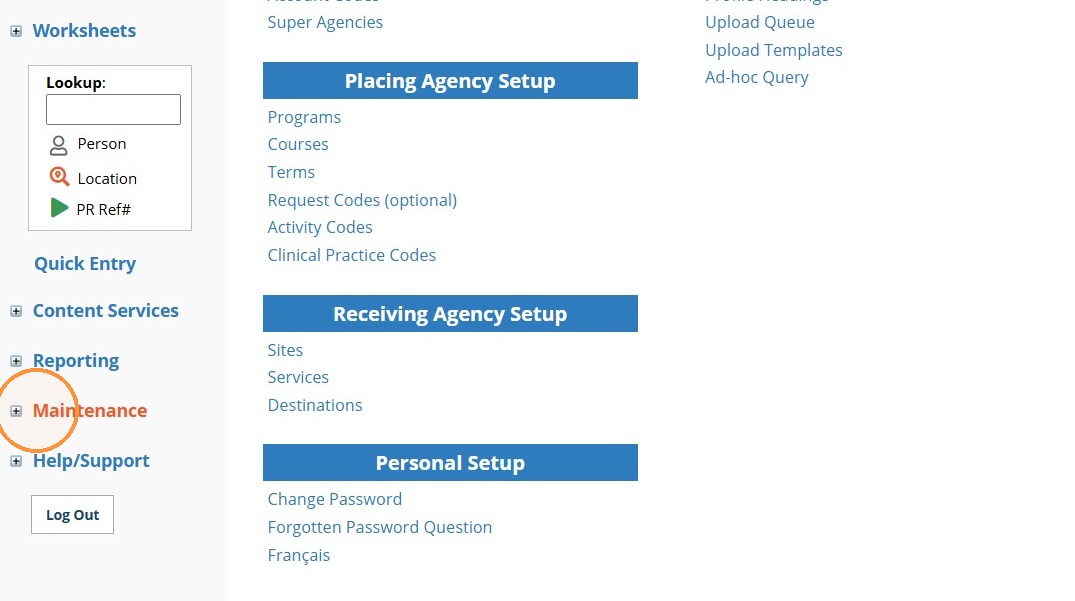
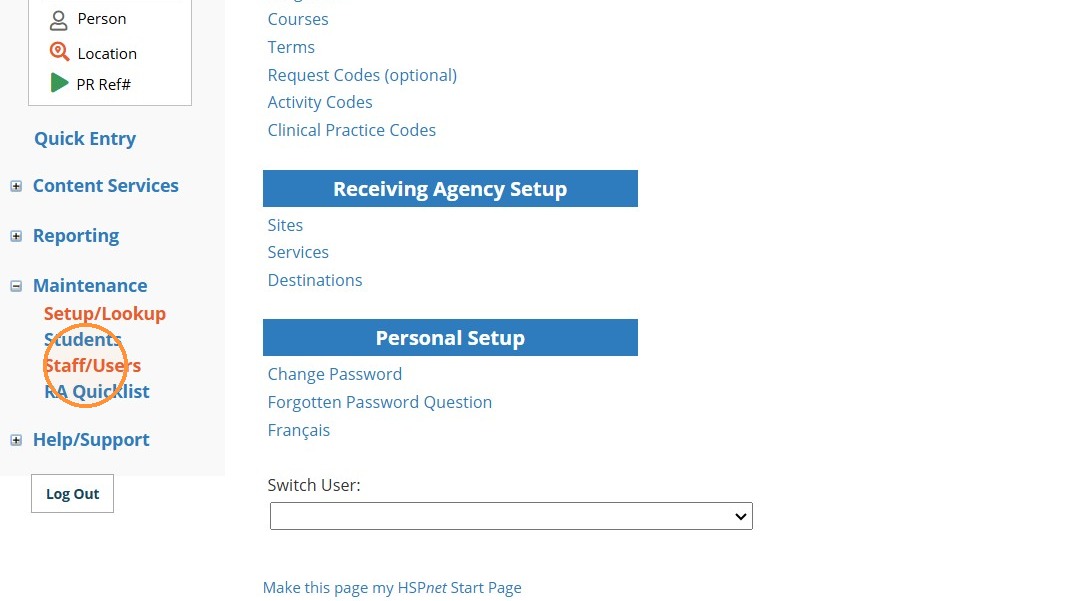
3. In the Maintenance sub-menu, select "Staff/Users".
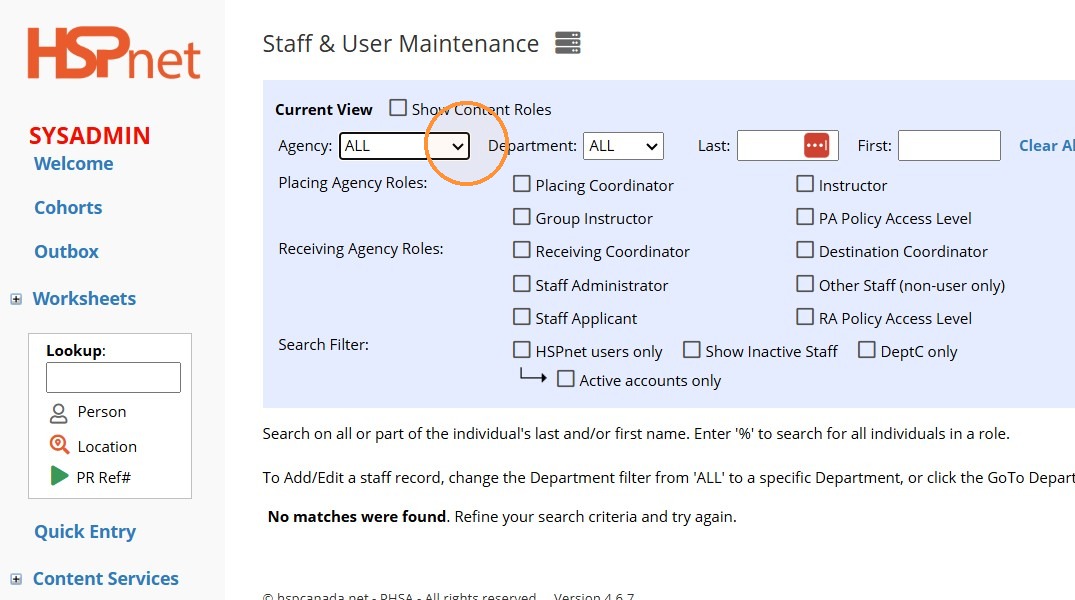
4. In the Agency drop-down menu, select your agency.
5. Select the Last (name) field.
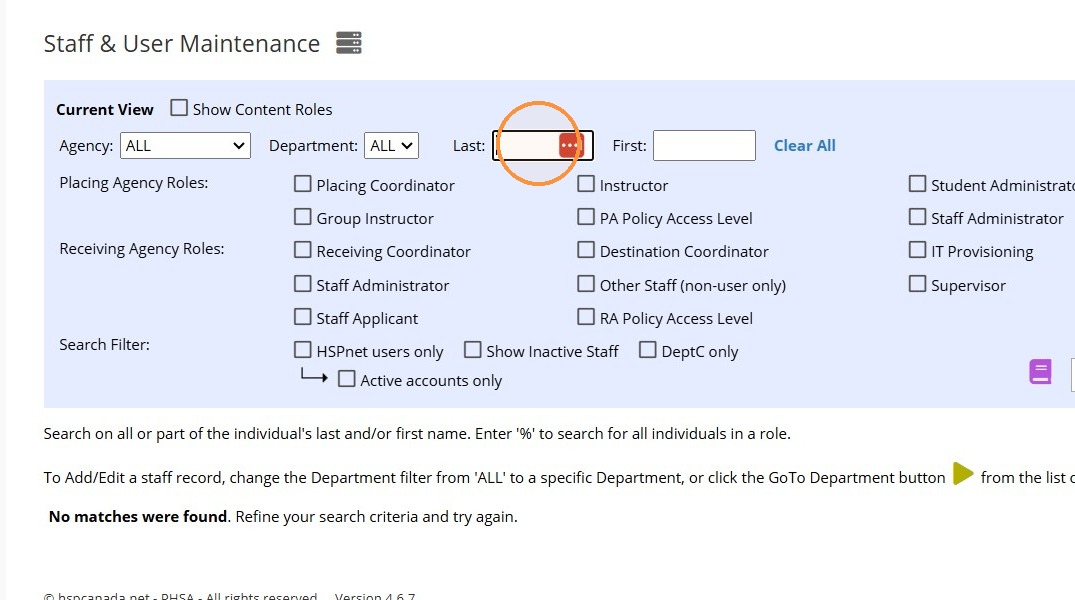
6. Type the last name of the user you wish to edit and press [[enter]]
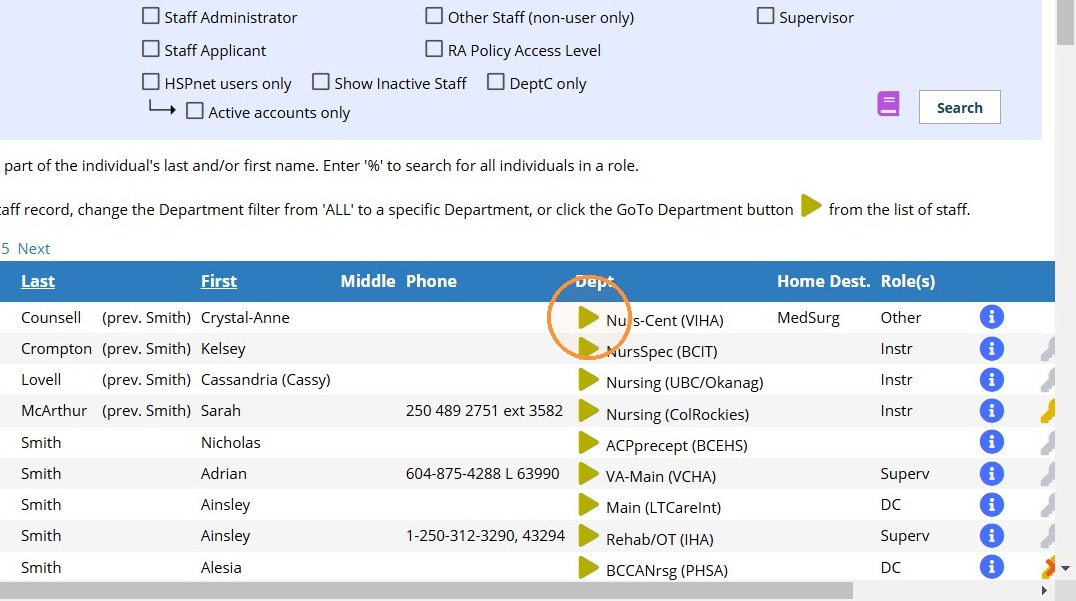
7. In the row corresponding to the user of interest, go to the Dept column and select the Department icon (yellow triangle pointing right).
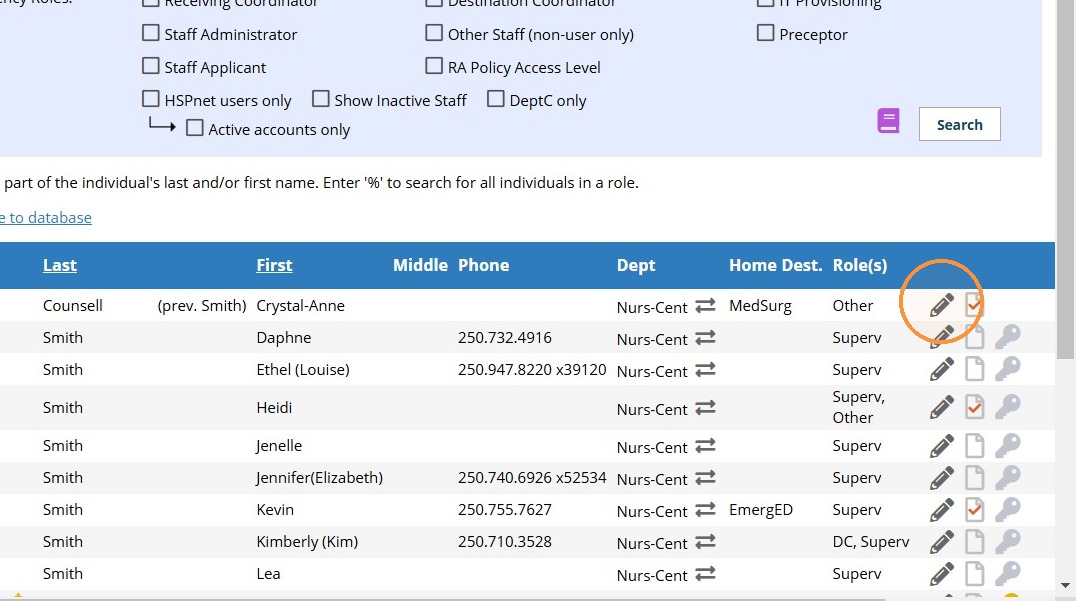
8. In the row corresponding to the user of interest, select Edit.
9. User record opens and can now be edited.
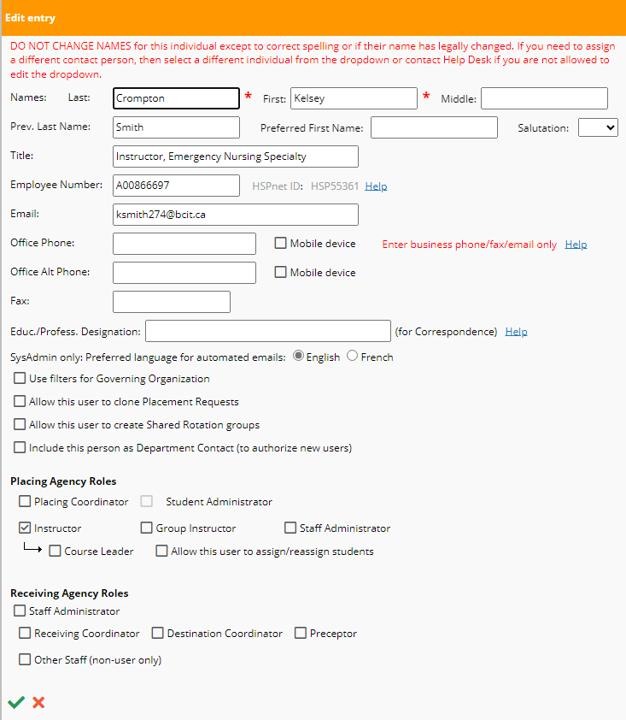
10. In the Email field, type the user's revised email address.
11. When finished, select the green check mark in the lower left of the Edit entry screen to save the changes you made to the HSPnet database.