
Student Admin - Automated Student Matching part 2 (Student Site Selector)
Placing Agency Related Guide (PARG)****
Summary:**
Automated Student Matching (ASM) can be used to randomly assign your students or used to match students using Student Site Selector (SSS) to placements.
This knowledge base page is for only doing Student Site selector matching.
Click to view only[Automated Student Matching part 1 - Random Match only](https://kb.hspcanada.net/x/Ioi3AQ)
Student assignment can be streamlined through the ASM feature that assigns students based on student preferences (ranked choices) or other rules. The ASM feature allows Placing Coordinators to use a combination of automated and manual assignments in any course.
Contact HSPnet Help Desk to request that the automated matching feature be enabled for your educational program(s).
Appendix, below, provides a list of the available matching algorithms and sample scenarios for their use if using SSS.
Refer to the Student Site Selector knowledge base page for set up of that feature and functionality.
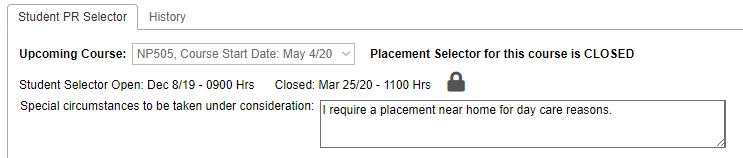
Step 1 – Review status of the Student Site Selector
To prepare for automated matching based on student choices:

 in Cohorts maintenance screen:



 . If the student has not entered their selections, or has only entered only some of the required amount of selections, it up to the Placing Coordinator to either:

 to review any "Special circumstances" that were entered by students during their selection.



 ; this opens a read-only copy of their saved choices, identical to the student's view.
Click Unlock

 to make changes to a student's saved choices, for example to ensure that a student's selections meet curriculum requirements. You will be warned that changes by the educational program are saved in the History tab for audit purposes.

Step 2 – Manage Exceptions
It is recommended that you manage exceptions to automated matching before using the ASM feature. See the Knowledge base page entitled Student Site Selector for the detailed steps to withhold a site from matching. Exceptions may include:


Step 2 – Click Cohorts / Assignment Worksheet 
 or

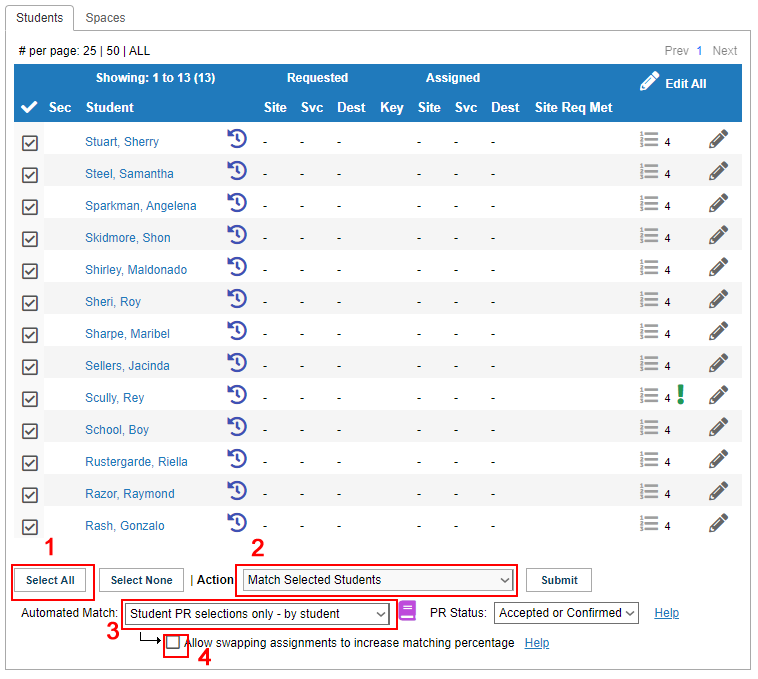
 for the course to be matched. Click the students tab.
PR Status:
Select which statuses of requests should be matched to students:
Allow swapping assignments to increase matching percentage
Clear this checkbox to match students strictly based on their selections in ranked order. When enabled, students may be assigned to one of their lower-ranked choices to allow a higher-ranked placement of theirs to be assigned to another student who would otherwise be unmatched. Clearing this checkbox may result in a lower overall matching rate.
**To view all Automated Match algorithms see the Appendix at the bottom

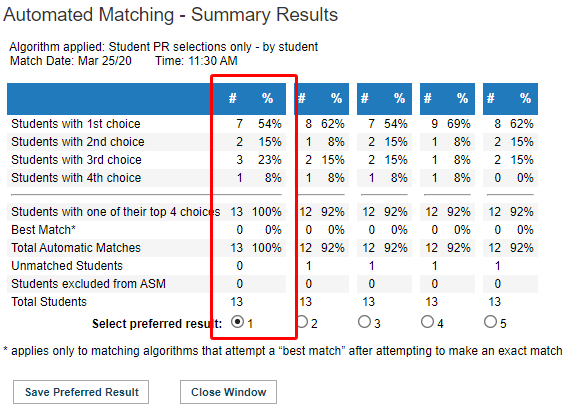
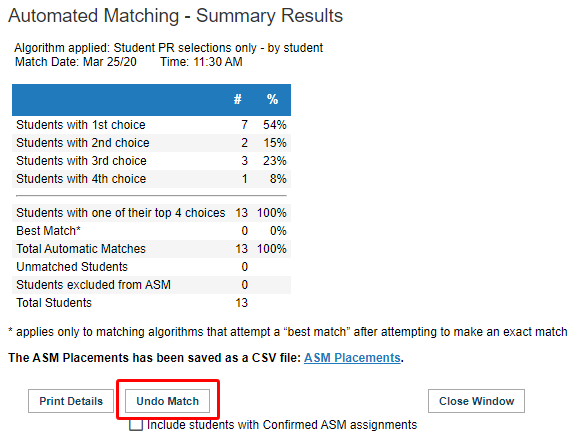
Upon Submit, you will present with a popup window of the ASM Match Results.
At this point you want to look through the results and see what is the best match.
#4 looks like a good match as 9 of the students have their first choice. What you want to make sure of is are all the students accounted for. Look at total automatic matches row for that. Since there was 13 students and only 12 were matched with #4, that is not a good match.
#1 is the good match as all students were matched and the majority received their 1st choice.
Click Save Preferred Result

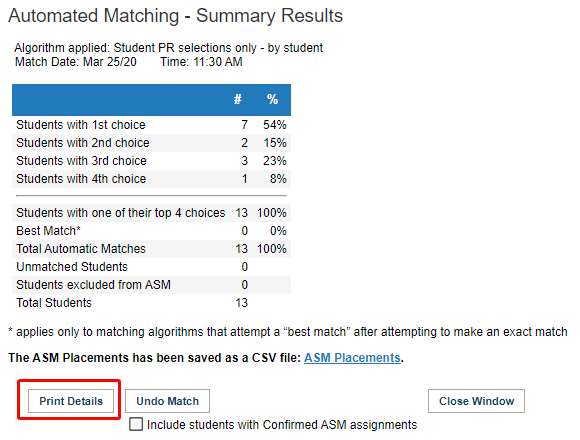
The next screen will give you the option to create a CSV file of the match results. Click Print Details if you require that report. Your report will be generated and displayed in the same screen. Click the ASM Placements link to download your report.
Click Close Window to see the results on the Assignment Worksheet.

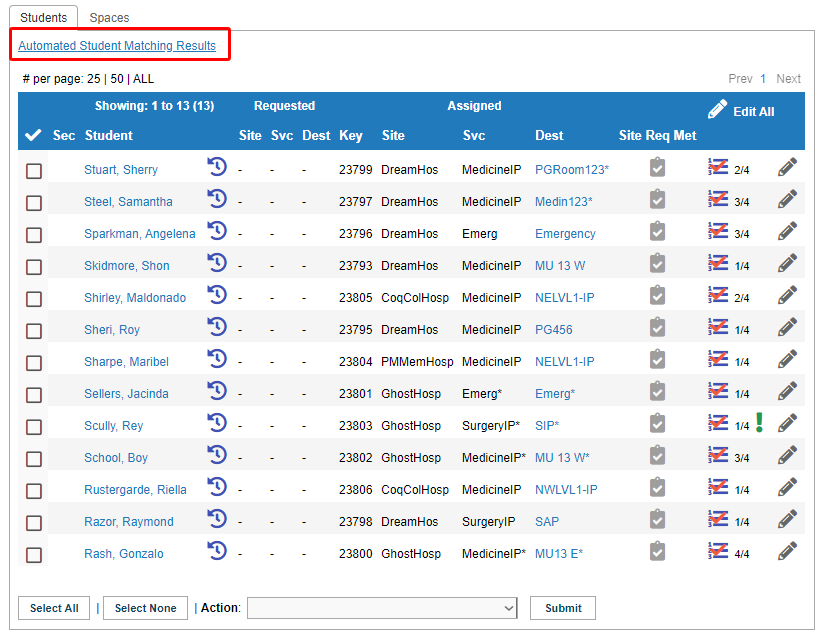
You will now see the match results on the Students tab of the Assignment Worksheet.
You will see the number 2/4, 1/4 on the far right of each student. This tells you that the student received his 2nd or 1st choice out of the 4 that they had chosen.
REMINDER: at this point the assignments are "draft" only, and are not confirmed (or visible to sites or your students) until you finalize them.
Finalize Assignments
2. If you need to manually change a student's automated match at any time, click Edit 
 and change their automatic assignment to "blank" (for manual reassignment later) or select another placement from the dropdown. Click Save All to continue and view the results.
To Undo the Match, click the Automated Student matching Results link
When the Summary results window opens, click the Undo Match button.
Your results will now be removed from the Assignment Worksheet.


Multiple ASM Results
In the example, some students were matched successfully, but the remaining students were not matched because their choices were not available. Perform these steps for running ASM again to assign the remaining students to placements that are still available.
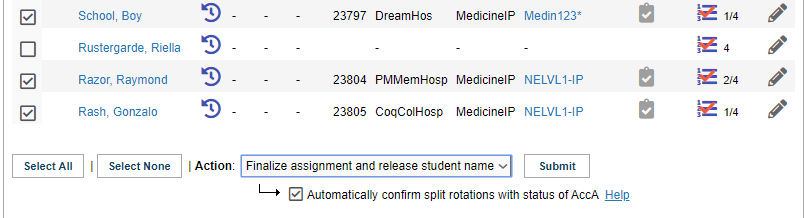

2. Confirmed students will disappear from view; mark the checkbox to "Show confirmed students" if you want to view all students.
3. Open the Automated Student Matching Results window and click Undo Match to clear the current match results. If you want to retain the first set of confirmed matches, do NOT mark the checkbox to "Include students with Confirmed ASM assignments".
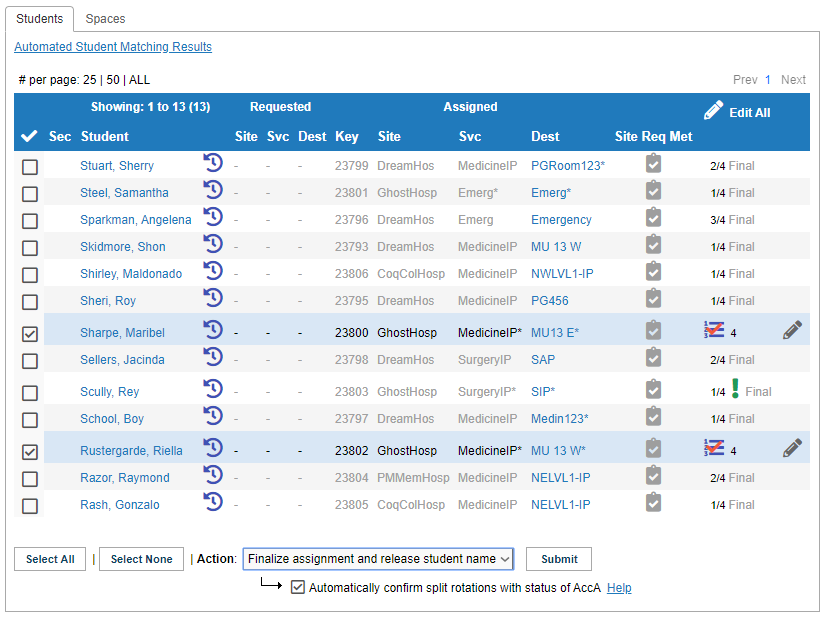
4. Students that were confirmed after the first match will now display of 1/4 Final or as such.
5. Select the remaining unmatched students and run ASM again, using the same or a different algorithm.
6. Select one of the five match results and click Save match Results to assign the selected students.
7. The second set of randomly matched students will now display "Current match results" icon 
 while students from the first match will display the 1/4 Final or as such.
8. Repeat steps 1 to 7 to run another partial match, or apply the action "Un-assign students" to clear assignments for any student.



Reporting
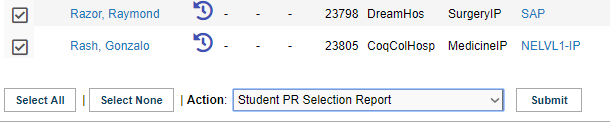
To run the Student PR Selection Report, select all students and in Action, choose Student PR Selection Report and Submit.
** This report will only show once Site selector is closed.
Your report will generate at the top of the Students tab.



Things to Remember**-Remember
Appendix - Algorithms Based on the Student Site Selector**Selector
NOTE:
Algorithm Name
Worksheet
Uses and Results
Student Selections only
Individual or Group
Used when an exact match based on PR Reference # is desired.
A selected student would remain unmatched if none of his/her specific PR choices (based on Ref#) are available
Option 1: In the first round, starting with a randomly selected student, all students are matched to their first choice if available. In the second round the algorithm attempts to match all unmatched students to their 2nd choice, and so on.
Option 2 ("by student"): A randomly selected student is matched to one of his/her saved choices if available, in ranked order (1st then 2nd, etc.). Another student is then randomly selected and matched to one of his/her saved choices if available, and so on.
Student Selections + City/Date/Zone
Individual or Group
Used when an exact match or a "next best" match is desired based on placement location and dates.
The algorithm assigns students to one of their saved choices if the exact PR Ref# is available (see above) OR if a "best match" is available based on City, Start Date (rotation), and Zone if entered (e.g. Lower Mainland or Region xxx).
Example: a student with 3 saved choices in Edmonton would be matched to his/her exact PR# or to a site in Edmonton, then if none are available to a site in the same Zone, and if possible in the same rotation (start date).
A student would remain unmatched if there are insufficient spaces available for the number of students matched.
Student selection or same destination
Individual or Group
Used when there may be multiple placements available in the same destination (e.g. Unit 4 north).
Example: a student that chose PR# 123 on Surgery/4North would be matched to any available PR on Surgery/4North.
A student would remain unmatched if none of his/her Destination choices were available
Student selection or same Experience at the selected site
Used when there may be multiple placements available at a site in the same experience area (HSPnet Request Code). This is commonly used in Rehabilitation Sciences where sites offer an experience such as CardioResp or Neuro.
Example: a student that chose PR# 123 at SiteX with CardioRep experience, would be matched to any available PR offering the same experience at that site.
A student would remain unmatched if none of his/her Site/Experience choices were available
<div class="greybox" align="left">

[asm9.jpg](attachments/28805286/28805230.jpg) (image/jpeg)

[asm8.jpg](attachments/28805286/28805231.jpg) (image/jpeg)

[asm8.PNG](attachments/28805286/28805232.png) (image/png)

[asm7.jpg](attachments/28805286/28805233.jpg) (image/jpeg)

[asm6.jpg](attachments/28805286/28805234.jpg) (image/jpeg)

[asm5.jpg](attachments/28805286/28805235.jpg) (image/jpeg)

[goto indv assign.PNG](attachments/28805286/28805236.png) (image/png)

[goto group assign.PNG](attachments/28805286/28805237.png) (image/png)

[asm4.PNG](attachments/28805286/28805238.png) (image/png)

[lock.PNG](attachments/28805286/28805239.png) (image/png)

[asm3.PNG](attachments/28805286/28805240.png) (image/png)

[asm2_fx.png](attachments/28805286/28805241.png) (image/png)

[asm1_fixed.png](attachments/28805286/28805242.png) (image/png)

[worddavebd624963b01f1088713e83cba8b8580.png](attachments/28805286/28805243.png) (image/png)

[worddav68ae31fd646ea2c673f0f78beca2b03a.png](attachments/28805286/28805244.png) (image/png)

[worddavec3537d67a57dcbea82304c7a68c4d5e.png](attachments/28805286/28805245.png) (image/png)

[worddavb7fe1869e43515d104b5453f40197743.png](attachments/28805286/28805246.png) (image/png)

[worddav818f4f8a6b40d0a93939b47c1d6b2a67.png](attachments/28805286/28805247.png) (image/png)

[worddavf4450f2cc1e322060463b3c93fe4aa90.png](attachments/28805286/28805248.png) (image/png)

[worddavf52bf39f8c9b12144e42bccf1647a64c.png](attachments/28805286/28805249.png) (image/png)

[worddav5a680f96c6637a584af175cb7716811f.png](attachments/28805286/28805250.png) (image/png)

[worddav948a87073bb2f6ae231db465f4893f7c.png](attachments/28805286/28805251.png) (image/png)

[worddave84c708f51467e05d87079e3df6e6307.png](attachments/28805286/28805252.png) (image/png)

[worddavb326a31142b2541294104ce2f92488dc.png](attachments/28805286/28805253.png) (image/png)

[worddavacafe01eebb26359b4a140ee1508a5e7.png](attachments/28805286/28805254.png) (image/png)

[worddav8335fefddecdf36a253d559f418d9869.png](attachments/28805286/28805255.png) (image/png)

[worddav4b649443264fbb5cff03f9cc8ead4aaa.png](attachments/28805286/28805256.png) (image/png)

[worddav1ee52604b44879771e355fdc881ae113.png](attachments/28805286/28805257.png) (image/png)

[worddave360658b3edaceb634b03d74b98acabc.png](attachments/28805286/28805258.png) (image/png)

[worddav179a824a99ce045fba306cdb4c6b2e80.png](attachments/28805286/28805259.png) (image/png)

[worddavc922e2fedaea21a46d5e85a0813cb5f9.png](attachments/28805286/28805260.png) (image/png)

[worddavcef11ee3b1f4c9df351e02dc36e20b12.png](attachments/28805286/28805261.png) (image/png)

[worddav0261e9eab1cef1b78cef47d6292a0770.png](attachments/28805286/28805262.png) (image/png)

[worddavbdaa02e88fa8d7f5e104935420a02fd1.png](attachments/28805286/28805263.png) (image/png)

[worddav4129cbbaafef32839e8efb1b57d49442.png](attachments/28805286/28805264.png) (image/png)

[worddav9395025d9388a91e3283449f163fc28a.png](attachments/28805286/28805265.png) (image/png)

[worddavcf97cdf14171573f2576e027c17c040d.png](attachments/28805286/28805266.png) (image/png)

[worddav92abefb9704480d3c34343508fd91c42.png](attachments/28805286/28805267.png) (image/png)

[worddav50853af05d5eb6cf7c49be05b44032da.png](attachments/28805286/28805268.png) (image/png)

[worddav5ad8ce2405841053eef1d6b6d2c77686.png](attachments/28805286/28805269.png) (image/png)

[worddave8740a474505527d167bcaa8602bc202.png](attachments/28805286/28805270.png) (image/png)

[worddav109239db36bfc8d552f72d8c542e4524.png](attachments/28805286/28805271.png) (image/png)

[worddave953fe66ff62498e2a078ece9305ee29.png](attachments/28805286/28805272.png) (image/png)

[worddavc9162f61080ea10fc42d46bd3b084715.png](attachments/28805286/28805273.png) (image/png)

[Step 4.PNG](attachments/28805286/28805274.png) (image/png)

[Step 3.PNG](attachments/28805286/28805275.png) (image/png)

[Step 1.PNG](attachments/28805286/28805276.png) (image/png)

[Step 2.PNG](attachments/28805286/28805277.png) (image/png)

[Step 10.PNG](attachments/28805286/28805278.png) (image/png)

[Step 7.PNG](attachments/28805286/28805279.png) (image/png)

[Step 6.PNG](attachments/28805286/28805280.png) (image/png)

[Step 5.PNG](attachments/28805286/28805281.png) (image/png)

[Step 15.PNG](attachments/28805286/28805282.png) (image/png)

[Step 14.PNG](attachments/28805286/28805283.png) (image/png)

[Step 11.PNG](attachments/28805286/28805284.png) (image/png)

[Step 16.PNG](attachments/28805286/28805285.png) (image/png)

[sss- completed.PNG](attachments/28805286/28805575.png) (image/png)

[comment - green.PNG](attachments/28805286/28805576.png) (image/png)

[sss not setup.PNG](attachments/28805286/28805577.png) (image/png)

[asm1.jpg](attachments/28805286/28805650.jpg) (image/jpeg)

[asm2.PNG](attachments/28805286/28805659.png) (image/png)

[asm3fx.png](attachments/28805286/28805660.png) (image/png)

[asm4fx.png](attachments/28805286/28805662.png) (image/png)

[asm5fx.png](attachments/28805286/28805666.png) (image/png)

[asm8fx.png](attachments/28805286/28805667.png) (image/png)

[asm6fx.png](attachments/28805286/68126187.png) (image/png)

[asm7fx.png](attachments/28805286/28805669.png) (image/png)

[asm9fx.png](attachments/28805286/28805670.png) (image/png)

[edit grey.PNG](attachments/28805286/28805674.png) (image/png)

[asm10.PNG](attachments/28805286/28805678.png) (image/png)

[asm11.PNG](attachments/28805286/28805679.png) (image/png)

[asm12.PNG](attachments/28805286/28805680.png) (image/png)

[asm13.PNG](attachments/28805286/28805681.png) (image/png)

[asm14.PNG](attachments/28805286/28805682.png) (image/png)

[asm6fx.png](attachments/28805286/28805668.png) (image/png)
</div>
</div>
</div> </div>
<div id="footer" role="contentinfo">
<section class="footer-body">
Document generated by Confluence on Nov 03, 2023 15:05
<div id="footer-logo">[Atlassian](https://www.atlassian.com/)</div>
</section>
</div>
</div>