Print Student Placement History
Placing Agency Related Guide (PARG)
Summary:
This guide explains how to print a studentsstudent's placement history forfollowing allcompletion placements(or theycessation) haveof completed.a program.
|
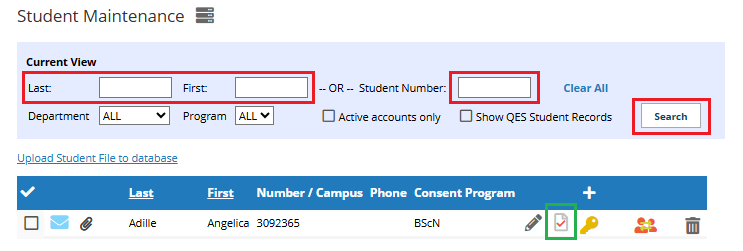
Login to HSPnet 1. Go to Student 2. Search for student by student number or
|
|
|
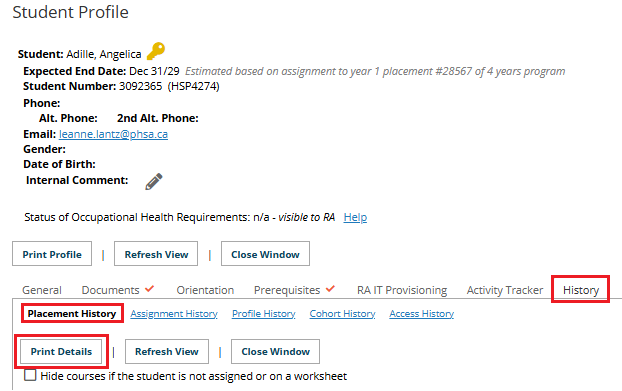
4. Go to the History tab of the 5. Select the Placement History 6. Click the button “Print Details.” |
|
|
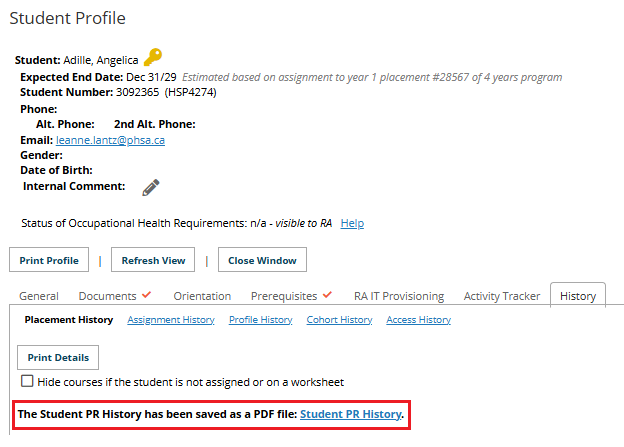
8. The report is generated as a PDF file, and a temporary link appears on your screen. 9. Click the link: “Student PR History” to open the PDF file. 10. You can now print the PDF on your printer, or select file “save as” to save this to your device. The link will disappear if you click to another tab and then return to this tab.
|
|