
Placement Requests - Postponing Placements
Placing and Receiving Agency Related Guide (PARG RARG)****Summary:**
Summary:
How to submit placements to a Receiving Agency by postponing existing placements which could not occur at the original time.
Background-
Note:Note:** It may be more convenient to create new placements from scratch than to postpone existing cancelled placements. Whether new placements are created and sent or existing placements are postponed, the process for the receiving agency remains the same: the placements appear as Pending and follow the regular placement cycle for coordination with the destination and acceptance/decline by the receiving coordinator.
Review the existing cohort and course setup (Placing Agencies)
- Locate the course in which the existing placements are located in the Cohorts screen
- If necessary, extend the course dates to cover the new dates for the placements
Note: If placements are postponed past the current course end date, the date will be extended automatically

Review the placements in the Outbox (Placing Agencies)
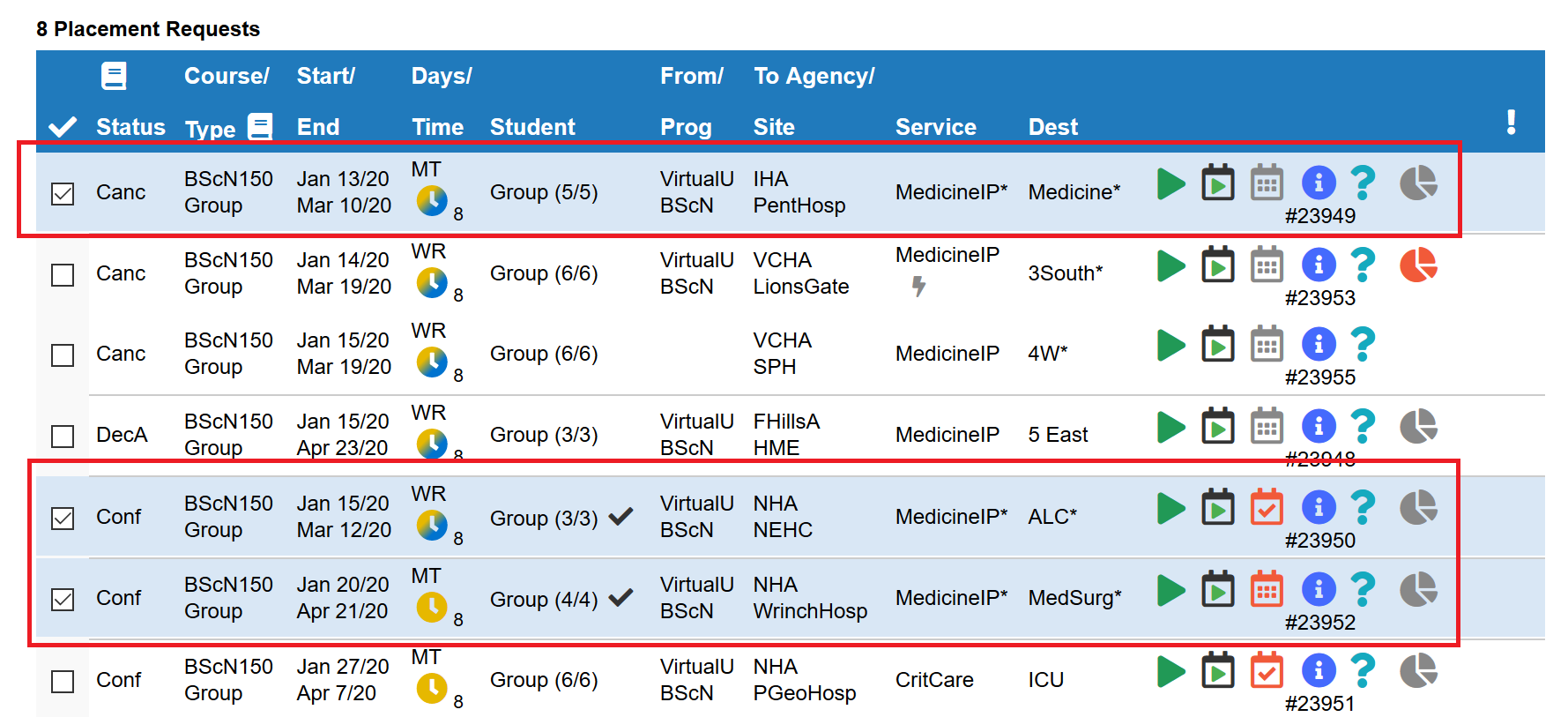
- Open the Outbox for the course.
- Locate the placements which need to be postponed to a later date.
- Select the placements to postpone.
Note: It is possible to only postpone a subset of all placements in a course, or to submit the action separately on different sets of placement.

Enter the new dates (Placing Agencies)
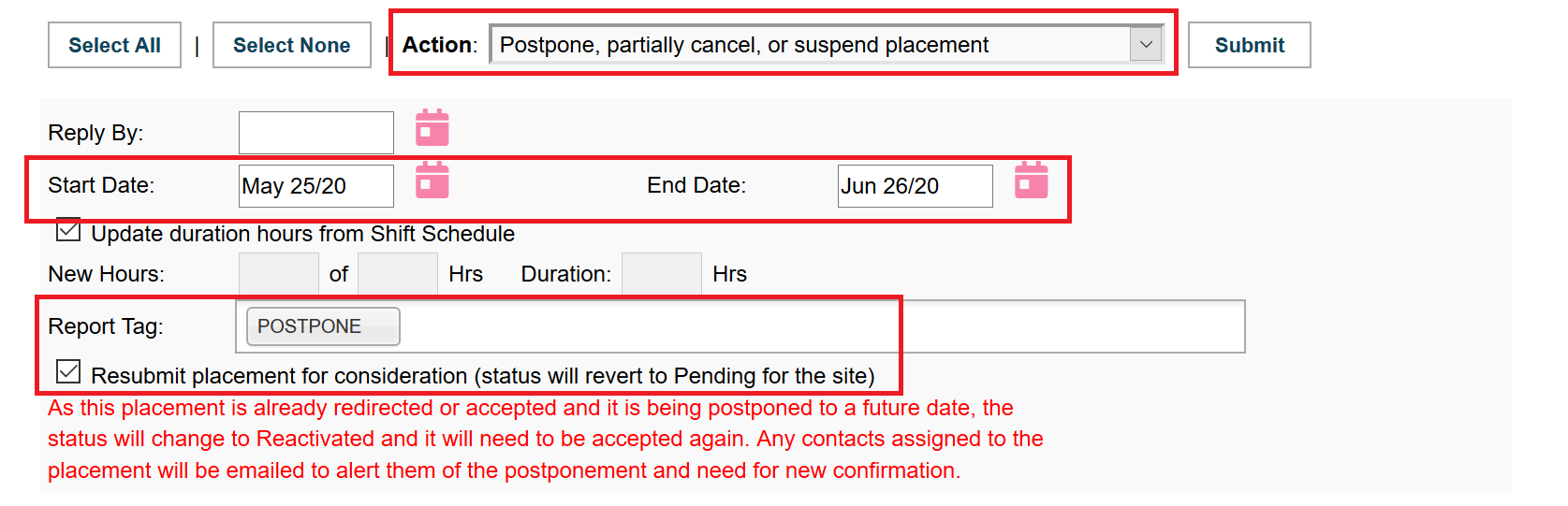
- Select the Postpone, partially cancel, or suspend placement action.
- Enter the new Start and End Date for the placements (The new start date must be later than today's date).
- Ensure the POSTPONE report tag is enabled.
- Ensure the Resubmit placement for consideration check-box is enabled.
Note: If you have already coordinated new dates and wish to maintain a current status (e.g. Accepted or Confirmed), it is possible to skip the reactivation of the placement requests by clearing the check-box. This should only occur with agreement of the site.

Postpone the placements (Placing Agencies)
- Select a reason for postponing.
- Click: Submit.


Review and process the new Pending placements in the Inbox (Receiving Agencies)
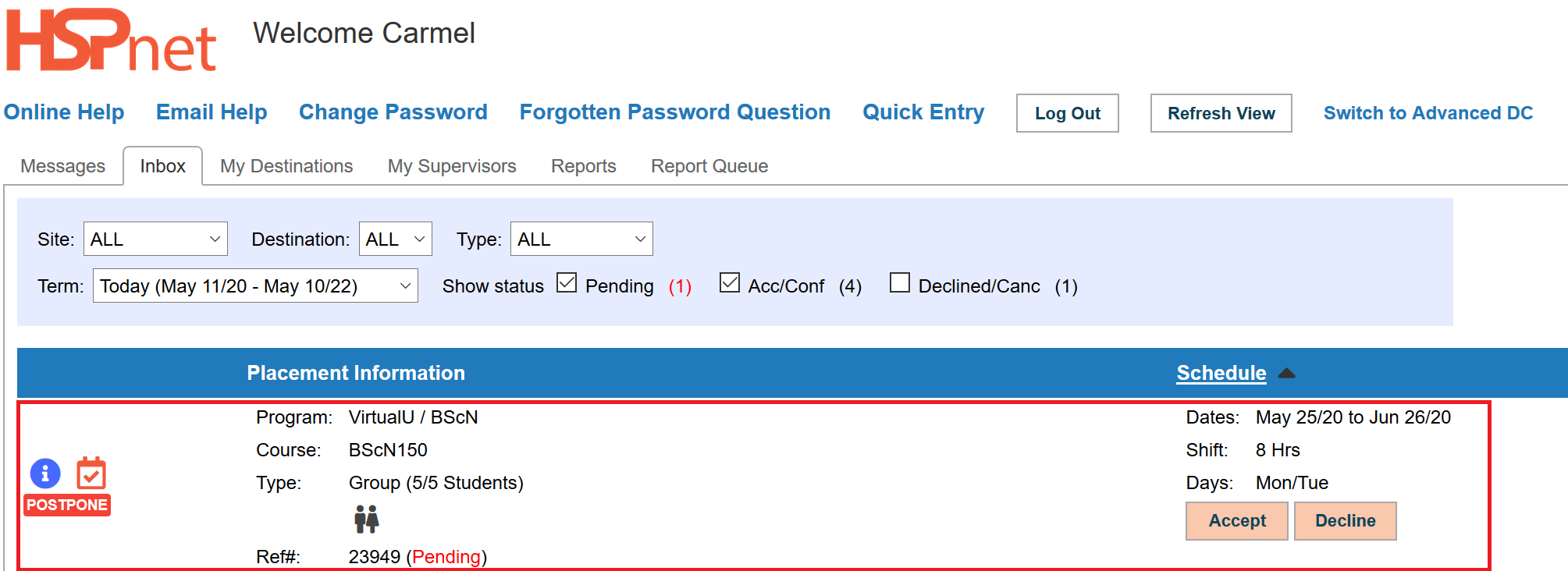
- Access the Welcome screen to view new Pending placements.
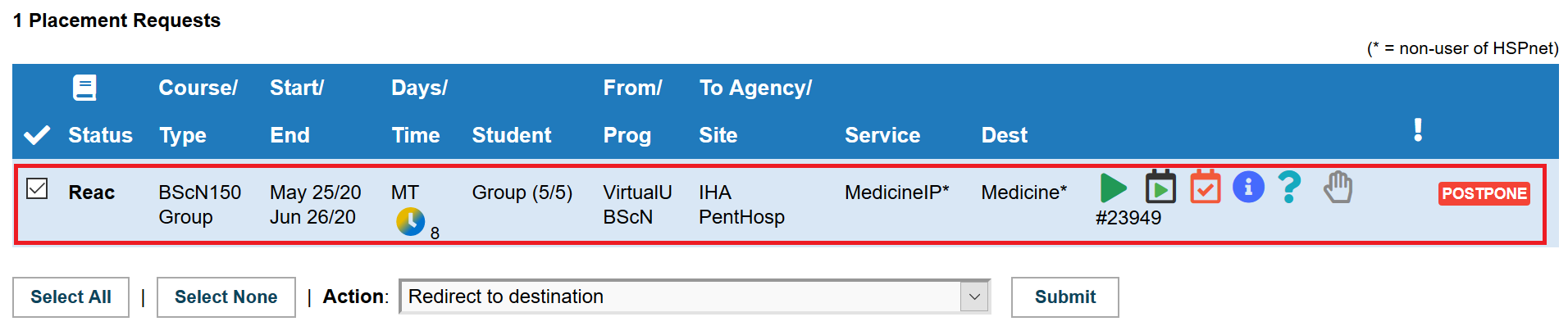
- New Postponed placements generate an alert under the Partial Cancel/Postpone/Suspend Changes and can be viewed, redirected, and accepted, as regular Pending placements.

Things to remember

<div class="pageSection group">
<div class="pageSectionHeader">
## Attachments:
</div>
<div class="greybox" align="left">

[image2020-4-16_11-44-7.png](attachments/28807323/28807316.png) (image/png)

[image2020-5-11_23-2-13.png](attachments/28807323/28807317.png) (image/png)

[image2020-5-11_23-12-38.png](attachments/28807323/28807318.png) (image/png)

[image2020-5-11_23-14-46.png](attachments/28807323/28807319.png) (image/png)

[image2020-5-11_23-16-16.png](attachments/28807323/28807320.png) (image/png)

[image2020-5-11_23-20-58.png](attachments/28807323/28807321.png) (image/png)

[image2020-5-11_23-24-32.png](attachments/28807323/28807322.png) (image/png)
</div>
</div>
</div> </div>
<div id="footer" role="contentinfo">
<section class="footer-body">
Document generated by Confluence on Nov 03, 2023 14:36
<div id="footer-logo">[Atlassian](https://www.atlassian.com/)</div>
</section>
</div>
</div>