
Placement Requests - Tracking Replacement Placements
1.
<span>[Knowledge Base](index.html)</span>
</div>
# <span id="title-text"> Knowledge Base : Placement Requests - Tracking Replacement Placements </span>
</div>
<div id="content" class="view">
<div class="page-metadata">
Created by <span class="author"> Yann Gomez</span>, last modified by <span class="editor"> Erik Graham</span> on Aug 09, 2021
</div>
<div id="main-content" class="wiki-content group">
**Placing and Receiving Agency Related Guide (RARG RARG)****Summary:**
Placing and Receiving Agency Related Guide (RARG RARG)
Summary:
How to ensure that all placements created as replacements for cancellations or partial cancellations are tracked for reporting purposes consistently with postponed placements.
Background -

Creating Replacement Placements (Placing Agencies)**
There are several ways to create replacement placements, depending on the nature of the original cancellation:-
Creating replacements as a splits
**Note: **The same students assigned to the original placement will be assigned to the replacement split.
- Locate the existing placement in the Outbox
- Click the Advanced Schedule icon
- In the Advanced Schedulescreen, click the **Add **icon to add a new placement
- Enter the new destination, dates, and **duration **for the new placement and save
- Click Return to Outbox
Refer to the Placement Requests - Splitting, Linking and Merging Requests and Placement Requests - Advanced Schedule guides for more details.
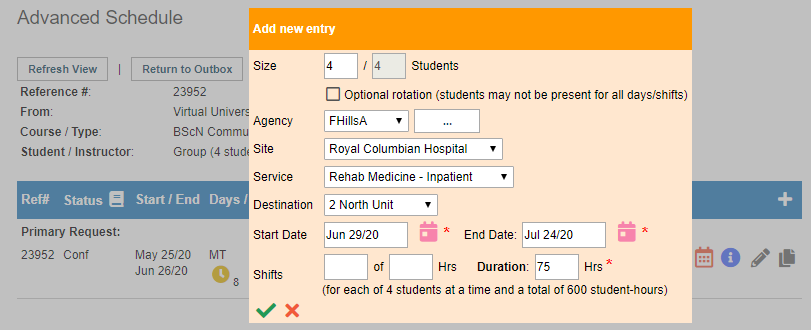

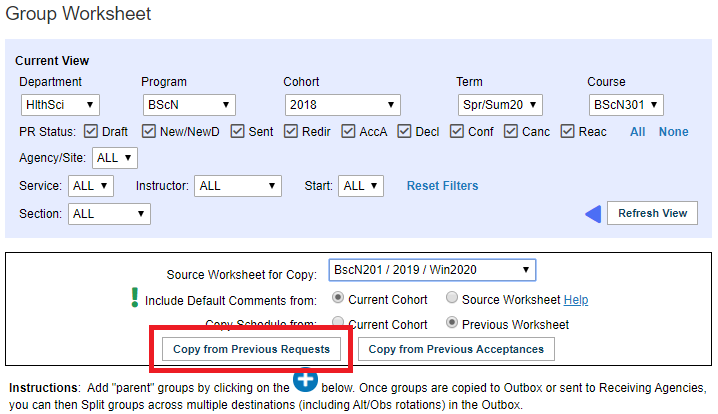
Creating replacements as new entries on a Worksheet
Note: if entering a replacement for a partial cancellation, ensure to enter the replacement placement in a new course to allow for student assignment.
- Go to Cohort
- Locate the Course, identified by its Term and Dates, in which the replacement will be entered
Note: it may be useful to use the copy from previous feature in the worksheet of a new course to copy all existing partially completed placements in a previous term, then delete any unnecessary copied placements

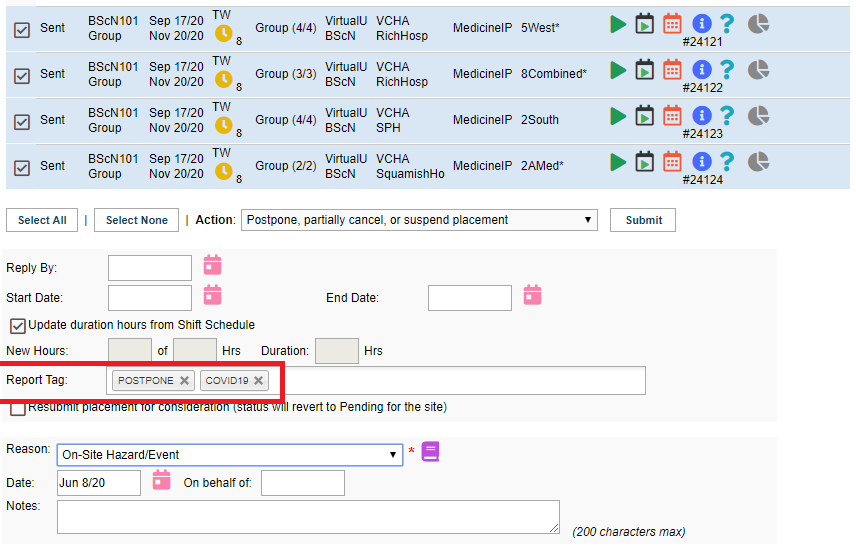
Marking replacements in Outbox
- Locate new placements in Outbox
- Select new placements
- Select the Postpone, partially cancel, or suspend action
- Leave dates and duration as entered when placement was created (either as split in on worksheet)
- Click the Report Tag box to add the Postpone tag, and any additional identifying tags such as COVID-19
- Enter the reason
- Enter notes (e.g. This placement is a replacement for interrupted placements in the previous winter term)
- Click Submit

Things to remember
<div class="pageSection group">
<div class="pageSectionHeader">
## Attachments:
</div>
<div class="greybox" align="left">

[image2020-5-11_23-24-32.png](attachments/33358133/33358093.png) (image/png)

[image2020-5-11_23-20-58.png](attachments/33358133/33358094.png) (image/png)

[image2020-5-11_23-16-16.png](attachments/33358133/33358095.png) (image/png)

[image2020-5-11_23-14-46.png](attachments/33358133/33358096.png) (image/png)

[image2020-5-11_23-12-38.png](attachments/33358133/33358097.png) (image/png)

[image2020-5-11_23-2-13.png](attachments/33358133/33358098.png) (image/png)

[image2020-4-16_11-44-7.png](attachments/33358133/33358099.png) (image/png)

[image2020-6-8_7-24-41.png](attachments/33358133/33359066.png) (image/png)

[image2020-6-8_7-28-8.png](attachments/33358133/33359070.png) (image/png)

[image2020-6-8_7-34-0.png](attachments/33358133/33359072.png) (image/png)

[image2020-6-8_7-34-17.png](attachments/33358133/33359073.png) (image/png)
</div>
</div>
</div> </div>
<div id="footer" role="contentinfo">
<section class="footer-body">
Document generated by Confluence on Nov 03, 2023 14:36
<div id="footer-logo">[Atlassian](https://www.atlassian.com/)</div>
</section>
</div>
</div>