
Placement Requests - Inter-provincial
1.
<span>[Knowledge Base](index.html)</span>
</div>
# <span id="title-text"> Knowledge Base : Placement Requests - Inter-provincial </span>
</div>
<div id="content" class="view">
<div class="page-metadata">
Created by <span class="author"> user-b1fcb</span>, last modified by <span class="editor"> Erik Graham</span> on May 17, 2023
</div>
<div id="main-content" class="wiki-content group">
**Placing & Receiving Agency Related Guide (PARG RARG)**<span
PLEASE DO NOT REFER GUESTS TO THE HSPnet HELP DESK FOR ANY REASON.**</span> *Guest users are not eligible for support because they are not funded users of HSPnet, they are a guest of the Receiving Coordinator who invites them.* HSPnet users may contact *e-mail help (* [ support@hspcanada.net](mailto:support@hspcanada.net) net ) for assistance in sending an email invitation to a non-user Placing Agency, or to report a problem on behalf of a guest *if it involves the HSPnet system*system. Help Desk is not available to provide direct support to any guest user, or to assist with problems involving their browser, email delivery, etc. This guide is an overview of the entire process and the screens involved so that Receiving Coordinators who use the guest link can provide some direct support to their guests.<span
Please note:**</span>** ** All Guest Access requests sent to a receiving agency should include the student's first and last name, email (a school issued email is recommended), and if the request is being sent to Alberta - the month and day of birth. The HSPnet Consent Form for Use and Disclosure of Student Information is included in your guest access link, as well as in our Knowledge Base when Searching “Forms”. This form should first be completed before submitting a request through an HSPnet guest access.
If a student is not willing to sign this consent form, please do not send a request and communicate directly to the receiving agency. Receiving agencies require a student name, email, (month and day of birth for Alberta), for IT provisioning and student training. The only circumstance an incomplete request should be sent to the receiving agency is when the school is unsure which student would be assigned to the placement. In that circumstance, the completed consent is then sent to the RA once the placement request is accepted, which enables the RA to enter the student name and email. Only HSPnet can add the day and month of birth for placements in Alberta <span style="color: rgb(255, 0, 0);">if the consent form was not uploaded with full name</span>,name, so if this is needed, please send us an email to assist.
Inter-Provincial Requests on HSPnet
OT and PT PCs and RCs dealing with a PT or OT placement - please skip to the last set of directions on this document.
All other professions:
HSPnet is a different database in every province, except Atlantic Canada, which has one database for four provinces. Most agencies have user accounts in their home province only, which means they can send requests to HSPnet users in their province and receive their responses on HSPnet from those users, however, if the receiving agency is in another province, the request cannot be sent (or received) directly.
When a placing agency enters a request into HSPnet in their home province and the student is being placed in another province, a second request may be required to document the student placement in the province where the student practice is to take place. This may be required for (the affiliation agreement) insurance and IT access if the receiving agency in the other province is an HSPnet user.
In these cases there will be two different reference numbers for the same student/student placement request: one in the home province where the student is tracked on HSPnet, and one in the provincial HSPnet database of the receiving agency of the host province, where the practicum is tracked and the student name may be required for IT access and insurance, etc.
Placing Agency searches for placement locations in other provinces:
 on the Welcome Screen to use the location look up feature to Search Other Provinces. The location lookup on the Worksheet cannot be used to search the actual database of another Province so the PC must use the location look up from the Welcome Screen, to search the database of the other Provinces.
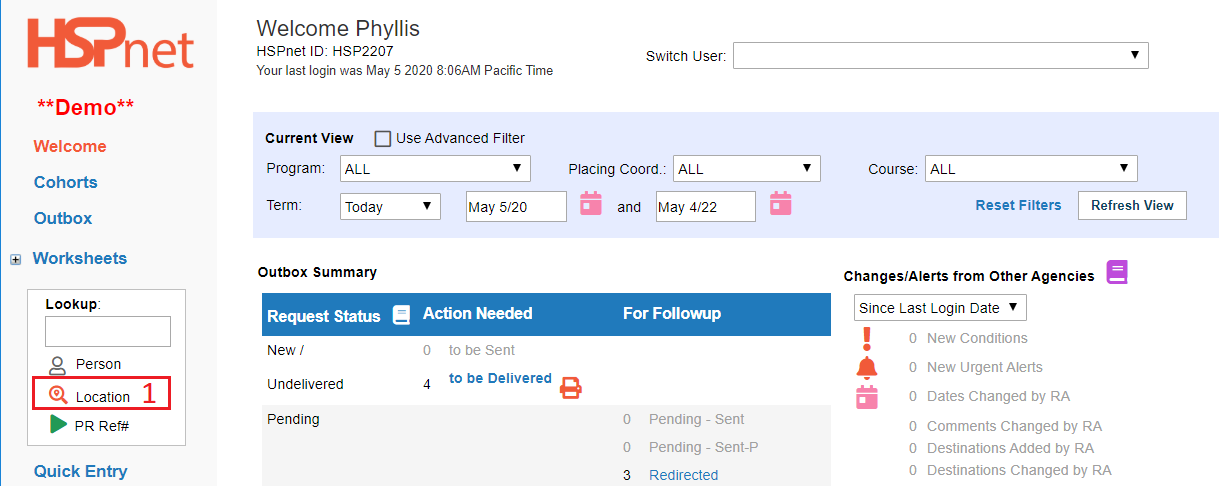

2. When the Find Locations window opens, click the link: "Search Other Provinces" in the upper left of the Find Locations window.
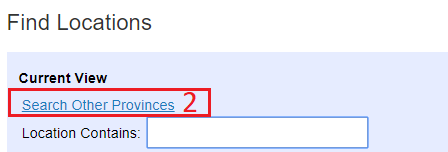

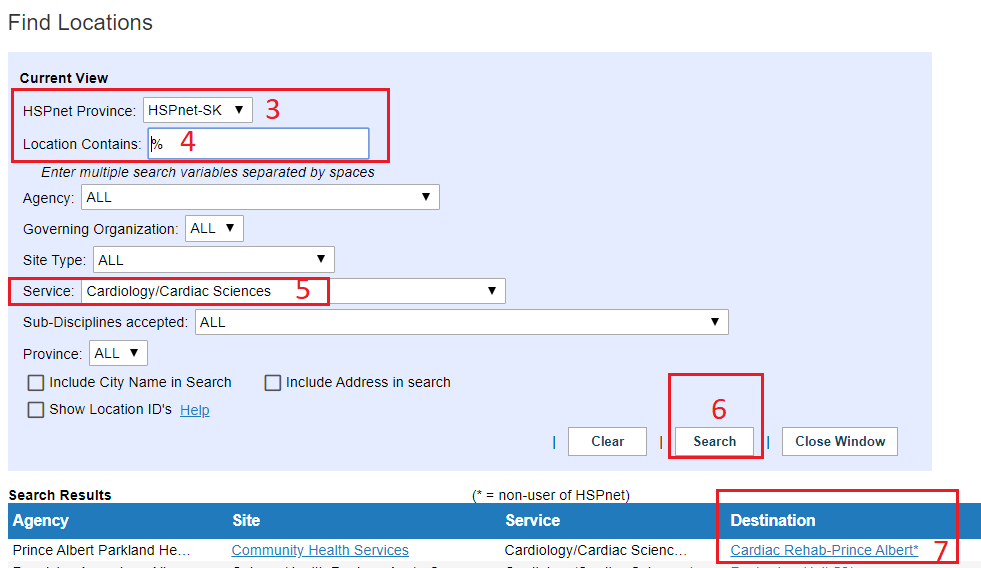
3. Select the desired province from the drop down list of provinces. When you select another province from the drop down list, please keep in mind that behind the scenes the data from another province is loading. When the screen does reload there will be a momentary flash. If you go to the next step too soon, and enter the next line of search too fast, when the screen does reload anything you entered may disappear. Please enter it again if that happens. I have counted between 3 and 12 seconds sometimes before the screen reloads.
4. Enter a key word (or the percentage symbol shown in this search: the % symbol means "show all."
5. Searching a service is shown in this example, but you could use any of the drop down's available.
6. Click "Search."
7. Click the link to the Destination profile link that you are interested in.

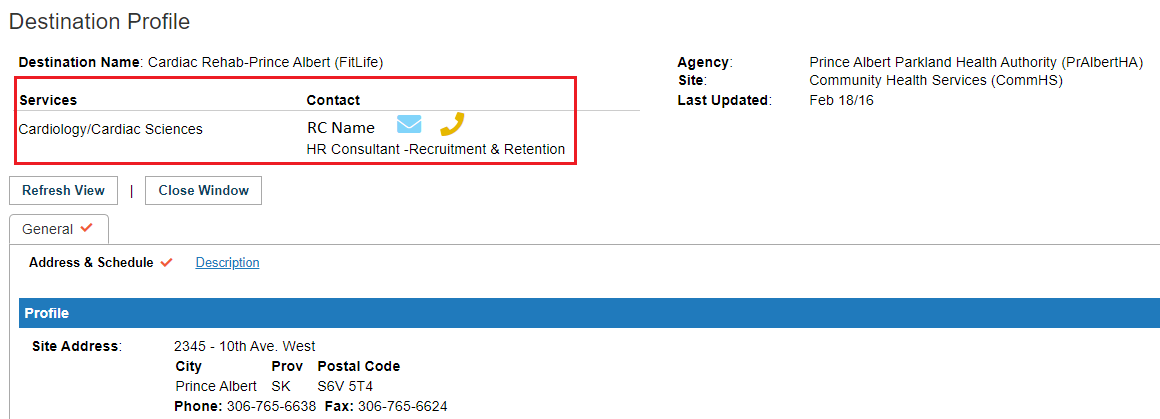
The Destination Profile will show you:

 to e-mail the RC or obtain the phone number from the telephone icon.
You can view the general tab of the destination profile which includes the address and description sub-links.

Process:
A PDF of the request from your database, should not be sent to HSPnet users across provincial borders where there is a different HSPnet database for several reasons:
To enter an HSPnet request into another province, only two methods are available, but both use the same (Receiving Agency) quick entry screen:
Student Assessment Module: (PT and OT process is the same below, although the student assessment module is only used by PT as of this writing).
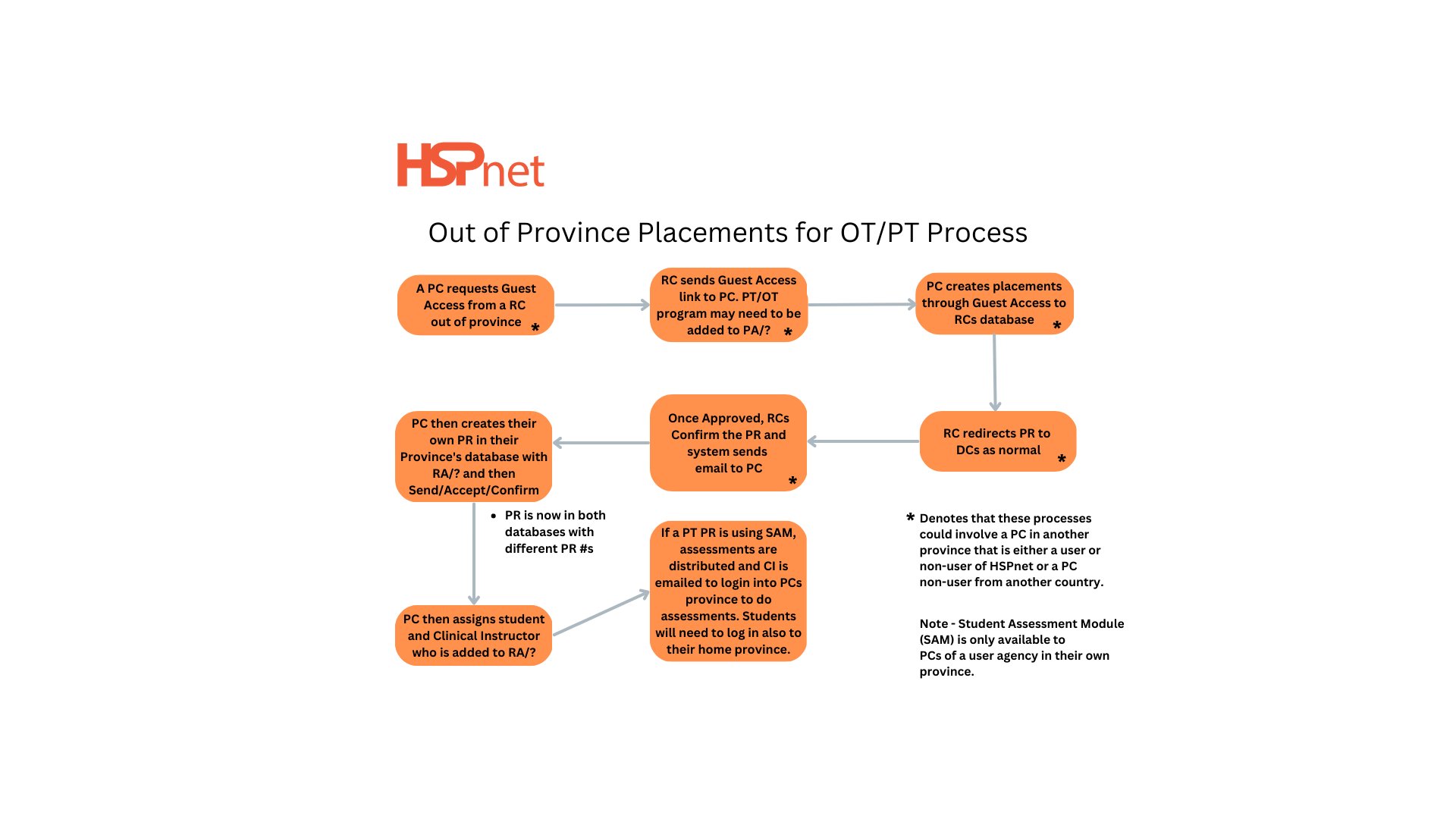

The above graphic is the best practice for schools placing their students in another province for PT/OT placements.
Schools using the Student Assessment module will need to create a duplicate of the supervisor's record in their database under Receiving Agencies + Province. This is the record that will obtain a user ID (when you distribute the assessment) in order to log into HSPnet and complete the student assessment. The supervisor in the other province needs to know they must click on the province where their student's school is located when they log into HSPnet, in order to access the Student Assessment Module for the out of province student.
Student Assessment Module Summary:
The steps are:
<div class="pageSection group">
<div class="pageSectionHeader">
## Attachments:
</div>
<div class="greybox" align="left">

[worddav3d3277c71905c7e29213d29dda02b77e.png](attachments/14155894/14155893.png) (image/png)

[worddav2b9340b0579a83b8d9478b4bb222fb07.png](attachments/14155894/14155895.png) (image/png)

[worddav6c6498573369d0deb155c3ea8836adb6.png](attachments/14155894/14155896.png) (image/png)

[worddav13a917577e5f41155f9c507a746b7f59.png](attachments/14155894/14155897.png) (image/png)

[worddav7b7417f1b6d80ac159c41497e194ad82.png](attachments/14155894/14155898.png) (image/png)

[worddav28c12b953ce411283c545f48cd7a5b2e.png](attachments/14155894/14155899.png) (image/png)

[image2020-5-5_8-22-4.png](attachments/14155894/28806895.png) (image/png)

[image2020-5-5_8-25-2.png](attachments/14155894/28806898.png) (image/png)

[image2020-5-5_8-31-39.png](attachments/14155894/28806900.png) (image/png)

[image2020-5-5_8-36-34.png](attachments/14155894/28806902.png) (image/png)

[Out of Province Placements for OTPT.png](attachments/14155894/68125443.png) (image/png)
</div>
</div>
</div> </div>
<div id="footer" role="contentinfo">
<section class="footer-body">
Document generated by Confluence on Nov 03, 2023 14:36
<div id="footer-logo">[Atlassian](https://www.atlassian.com/)</div>
</section>
</div>
</div>