
Placement Requests - Group Shift Schedule (GSS)
1.
<span>[Knowledge Base](index.html)</span>
</div>
# <span id="title-text"> Knowledge Base : Placement Requests - Group Shift Schedule (GSS) </span>
</div>
<div id="content" class="view">
<div class="page-metadata">
Created by <span class="author"> user-b1fcb</span>, last modified by <span class="editor"> Erik Graham</span> on Jul 29, 2021
</div>
<div id="main-content" class="wiki-content group">
**Placing & Receiving Agency Related Guide (PARG RARG)****Summary:**
Placing & Receiving Agency Related Guide (PARG RARG)
Summary:
The Group Shift Schedule provides:-
Icons:

 Placement Request Details icon.
 Group Shift Schedule
 Group Shift Schedule - shift changes exist
Background
The scheduling challenges of accommodating instructor-led Groups require the ability to make detailed scheduling changes to the "default" schedule of a Group placement.
Examples of detailed scheduling changes:-
Requirements for using the Group Shift Schedule
- The default schedule in Placement Details (placement information tab) must be set to specific Days (e.g. MTW) and Times (Shift Code, or start plus end times).
- Groups with a default schedule of blank, Various days, or Various times will not be displayed (Shift Hours as drawn will equal "0") and an orange warning will appear.
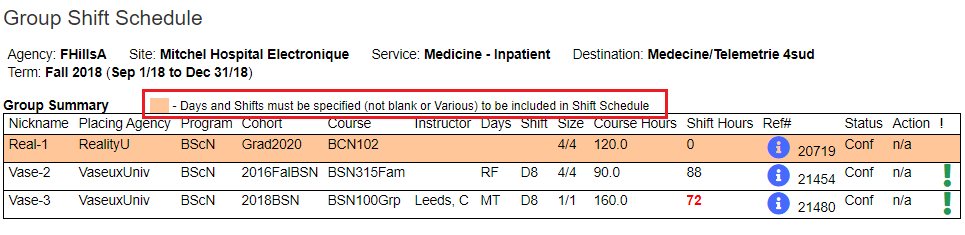

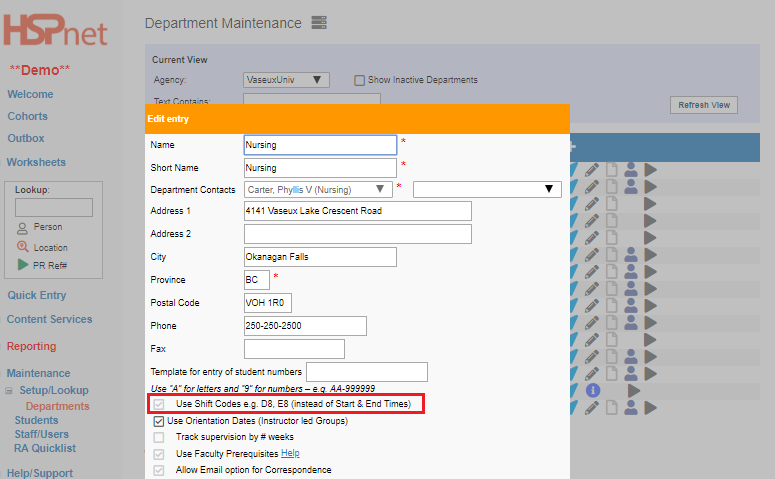
- The use of Shift codes (such as D8 or D7) will improve your efficiency when using the Group Shift Schedule, when making shift changes such as alternating Days/Evenings. If your educational program wishes to implement Shift Codes, you need to check the "Use Shift Codes" checkbox in Department setup. Contact HSPnet support via the e-mail help link to request the shift codes be activated for your department(s).

Viewing the Shift Schedule (All Users)
Click the Group Shift Schedule icon to open the Schedule window.
Group Nicknames:
Each request is displayed by its "nickname," automatically defined as the first few letters of the school name plus a number (e.g. UBC-1, UOtt-2, Virt-1 (Virtual University). These "nicknames" correspond with placement request reference numbers.
Nickname Reference Number
Group Summary:
This table lists all Groups on the unit and key information such as group size, default shift schedule, days of the week, and Reference #.
Shift hours
are displayed in red if the total of all displayed Shifts ("Shift Hrs.") is under or over the required Course hours (default in Details).
Group Summary Shift Hours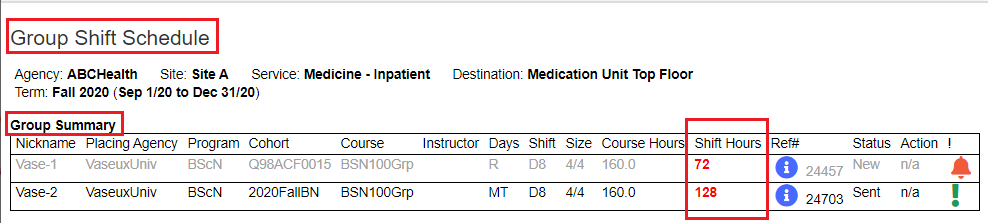

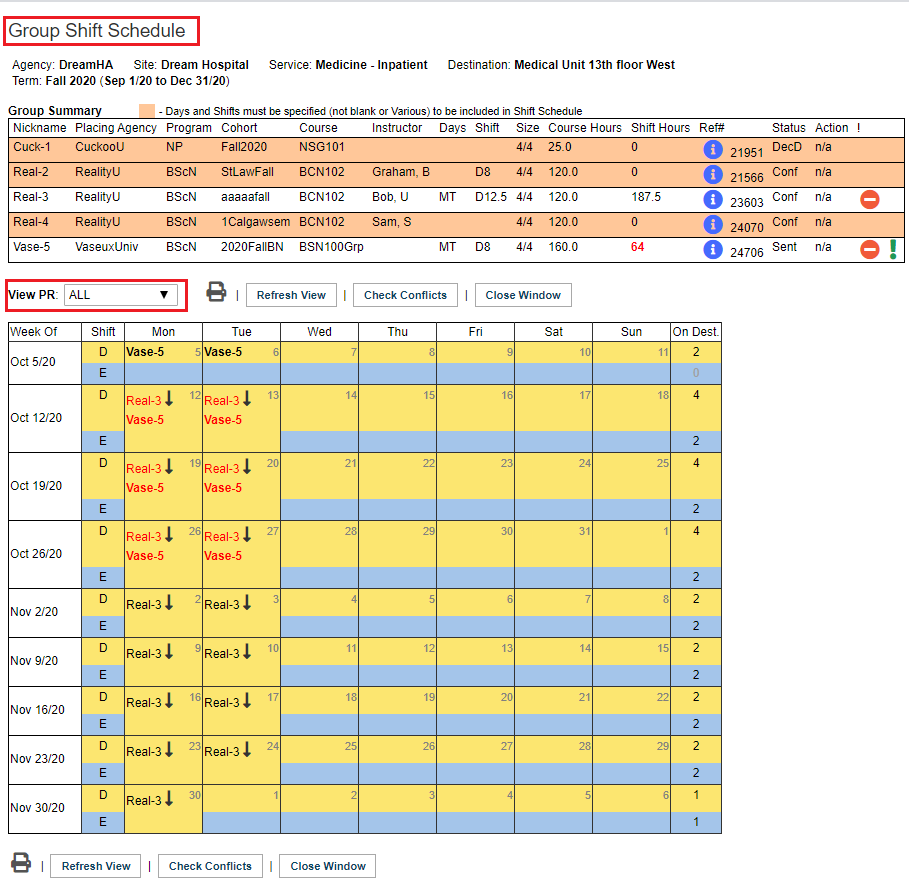
- 12-hour Shifts – Extended shifts occupy both the Day and Evening spaces, and display the indicator

 .

Placing Coordinators only: Editing the Shift Schedule
- Each educational program may only edit their own Groups. Your Group nickname on the schedule will be bold, and that Group is editable by the current user. Click on a bolded Group nickname to edit that shift – several icons will appear:


Switch Shift - changes a single Day shift to Evening, or vice versa (requires use of Shift Codes)
Click on the arrow icon (there are two arrows but only one icon).
Edit Shift
Click the edit icon  to open the edit screen.


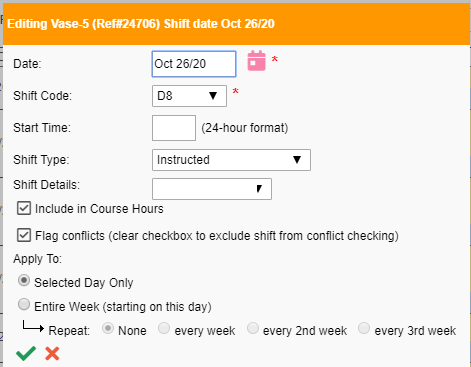
In the edit screen you can:
-
- Change the shift Date (to another day of the week) - edit the text field or click the select a date icon.


- Change the shift Date (to another day of the week) - edit the text field or click the select a date icon.
-
- Change the Shift Code (e.g. from D8 to D12 selected from the drop down list). The choice No Shift is equivalent to deleting a shift, and can be used in combination with other choices below (e.g. to delete all shifts in a week).
-
- Change the Start Time, or change start and end times if shift codes are not used.
-
- Change the Shift Type (e.g. Orientation, Chart Review, or Observation-only).
If a shift should NOT count towards a student's required Course hours, click to remove the check from the box in front of: "Include in Course Hours".
-


-
-
 Add Shift - to create a new shift (e.g. to add a weekend shift). Click on a blank square and the add icon will
apear.appear. Click the X to cancel.. 

 Delete Shift - e.g. to remove a shift for a statutory holiday

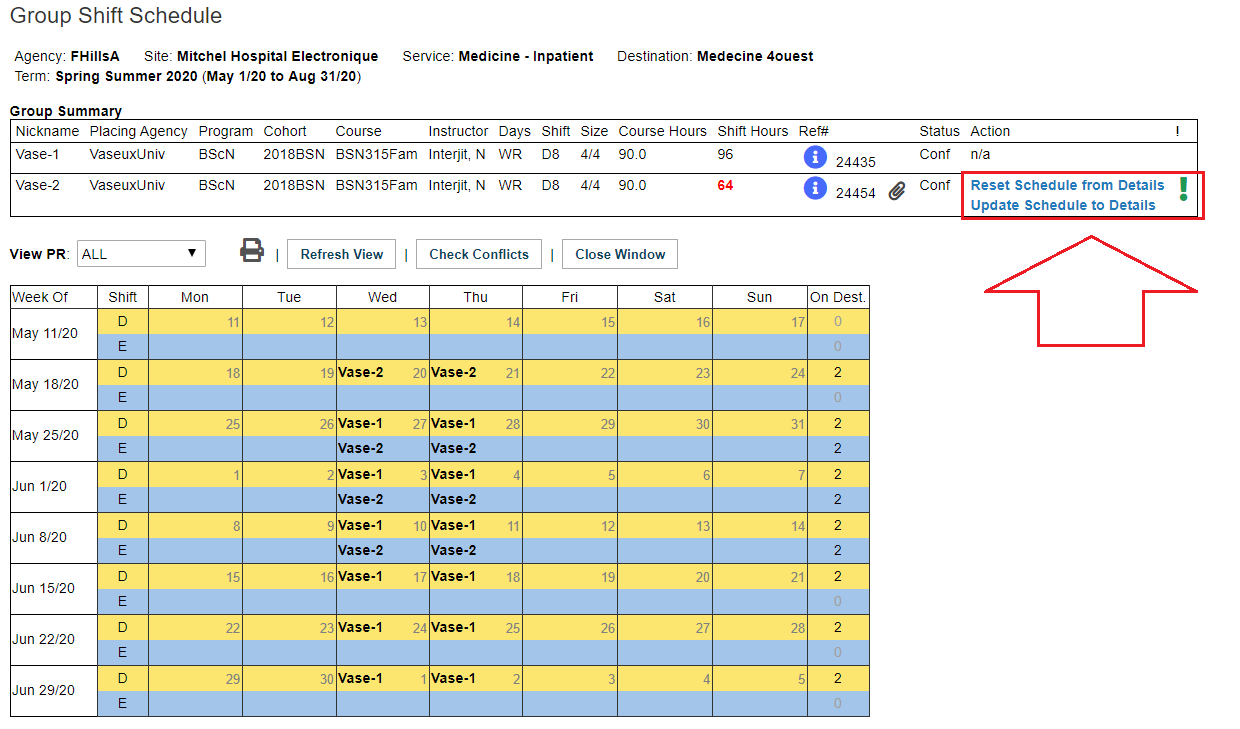
Reset Schedule from Details – this will reset the displayed shifts on the group shift schedule to match the schedule entered in the Details 
screen . screen.
Update Schedule to Details – this will reset the schedule entered in the Details screen to match the actual shifts displayed in the group shift schedule.

Automatic Conflict Checking (only for Agencies using conflicts tools)
Best Practice:
All education programs in a jurisdiction should agree to use Conflict Flagging at the same time, rather than some programs being checked while others are not. If your jurisdiction wishes to implement conflict Checking, automated or manual, please contact HSPnet support via e-mail help.
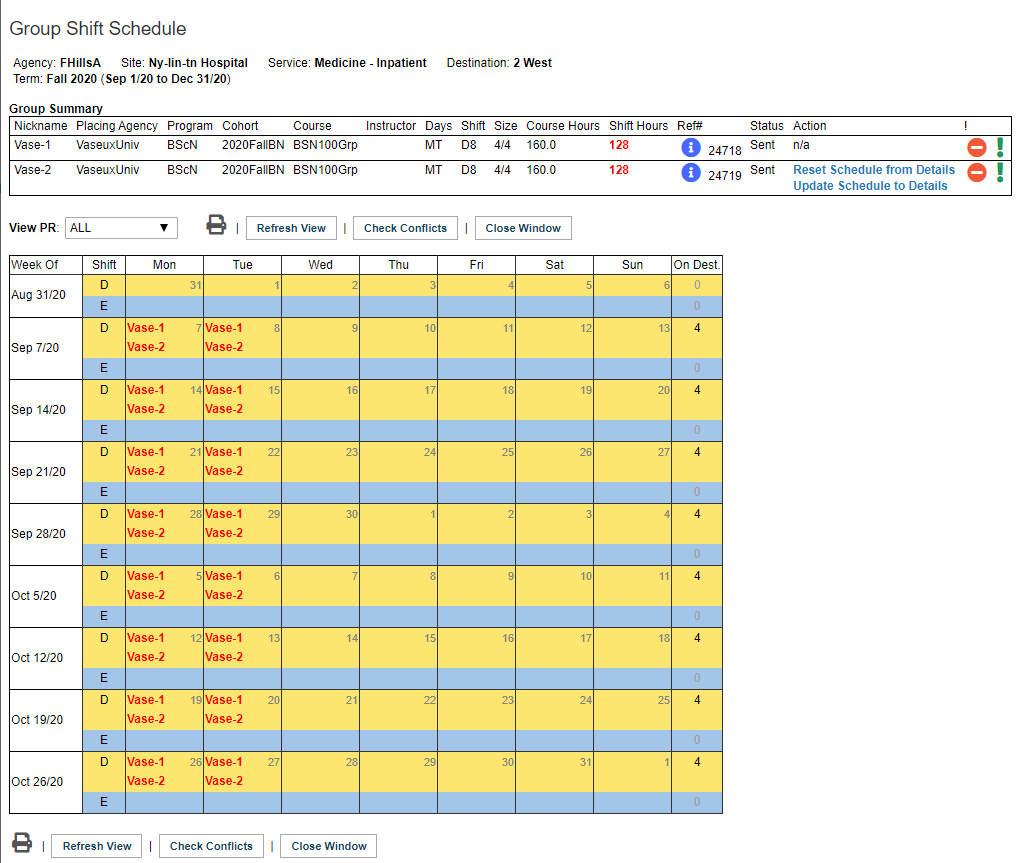
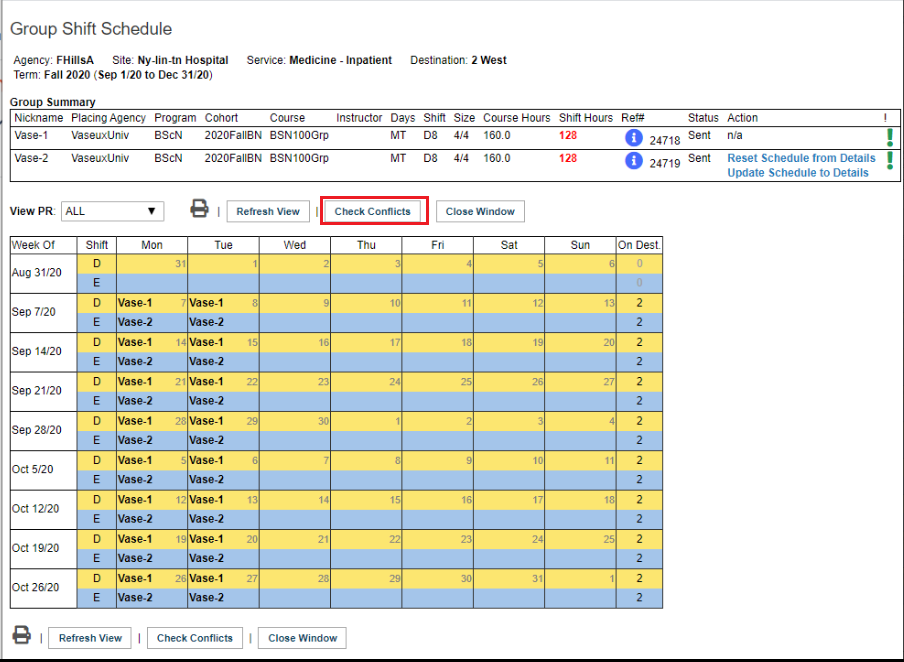
A group of schools in a region or province may elect to enable Conflict Flagging, so that overlapping Group placements are marked with a warning flag  . The flag can be set:
In this example, two groups from the same school are in conflict on Mondays and Tuesdays on the day shift.

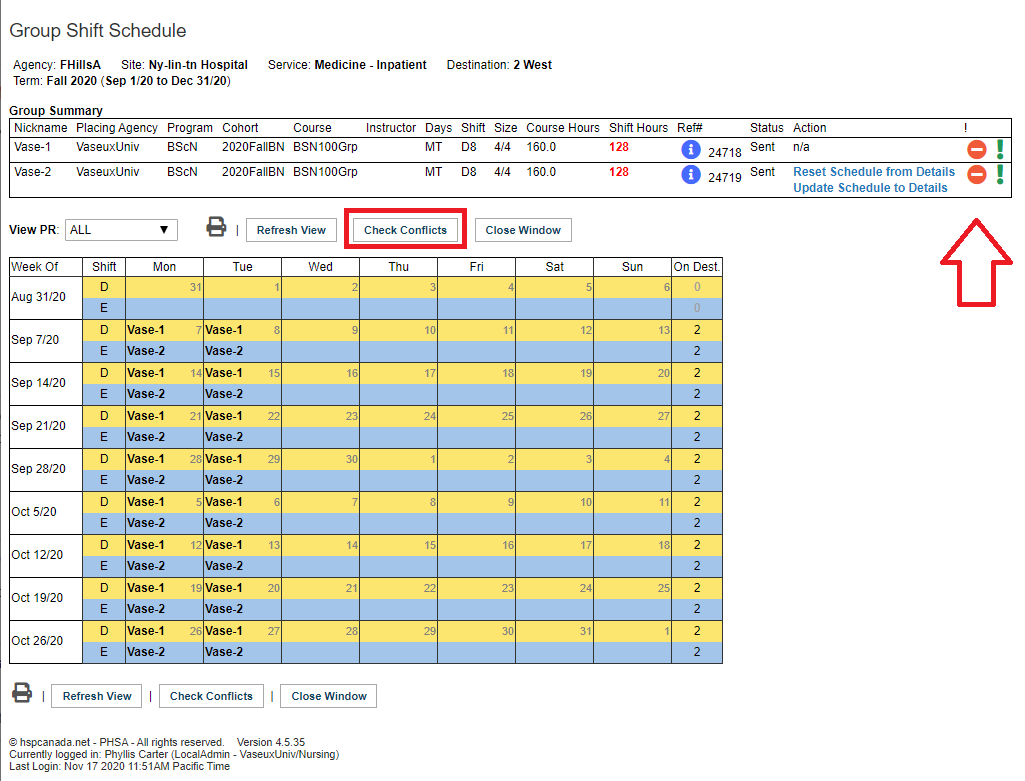

Remove Conflict Flag icon: (PC only)
Click the Check Conflicts button. If there are no more conflicts detected, the alert flag goes off.

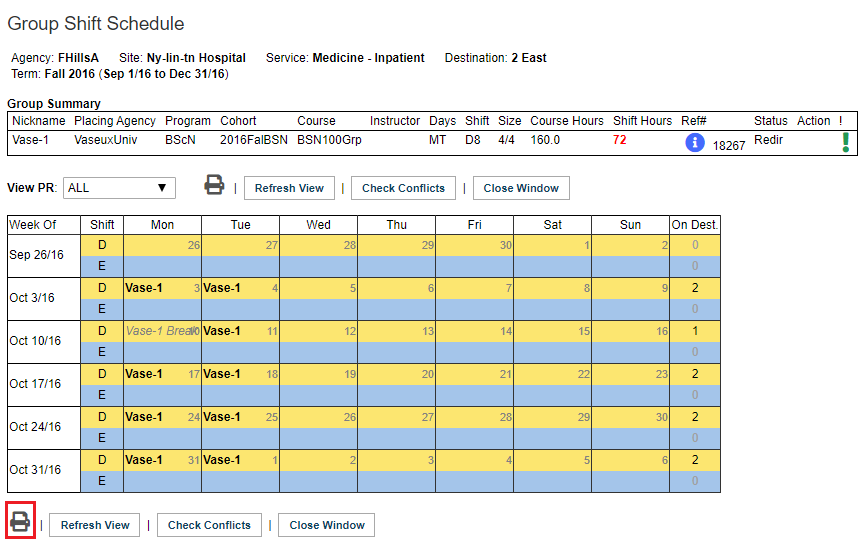
To print a copy of the Group Shift Schedule
- Open the group shift Schedule
- Click the printer icon in the lower left hand corner
- Your local printer window will open at your agency.

Changes that may occur as a result of editing:
- When the Group Shift Schedule is closed after making one or more Shift changes, the Inbox/Outbox is updated to reflect changes that have occurred:
- If any shifts have changed, the Schedule icon
 is updated to show "Shift changes exist".
- If the default schedule was previously days only
 and any evening shifts have been added, the Shift icon will be updated to reflect a mix of days and evenings

 .
- If the default schedule has been changed to add shifts on another day of the week, the Days indicator will be followed by a plus sign. For example: MTW+ Default days are Monday, Tuesday, Wednesday, plus there are some shifts on other days (even if just one Saturday got added for instance).

<div class="pageSection group">
<div class="pageSectionHeader">
## Attachments:
</div>
<div class="greybox" align="left">

[worddav68ae31fd646ea2c673f0f78beca2b03a.png](attachments/9699616/9699615.png) (image/png)

[worddav18f9cb3a2a570a4038f8786c59438d7d.png](attachments/9699616/9699617.png) (image/png)

[worddaveb73cc37bea568c9cb616365f3dbb305.png](attachments/9699616/9699618.png) (image/png)

[worddavf000113db90d8fc5d66ad302a46853e9.png](attachments/9699616/9699619.png) (image/png)

[worddava2776adbda9f6278a9d1f996b21b1fff.png](attachments/9699616/9699620.png) (image/png)

[worddav887b6d100539acb6f91ebccb6baab929.png](attachments/9699616/9699621.png) (image/png)

[worddava51f0bb2e54829cdd0edf59d27969c14.png](attachments/9699616/9699622.png) (image/png)

[worddavb0c6e2dfdc0d8d8ecbb386c6d30edd1f.png](attachments/9699616/9699623.png) (image/png)

[worddav0c07cc656f6c74d87c1d9783e1b6ffc3.png](attachments/9699616/9699624.png) (image/png)

[worddavd1d3415a80998e5d1e9bad85178568ba.png](attachments/9699616/9699625.png) (image/png)

[worddav7759e5f19b52eeeaee13a93ebdcde259.png](attachments/9699616/9699626.png) (image/png)

[worddav5a680f96c6637a584af175cb7716811f.png](attachments/9699616/9699627.png) (image/png)

[worddava35db5d96802959d4d866c847651cc35.png](attachments/9699616/9699628.png) (image/png)

[worddavf5e5c0e051f50b173c2904a12d27f98f.png](attachments/9699616/9699629.png) (image/png)

[worddav6e0fe471e143be9fd08628c853a0fe6e.png](attachments/9699616/9699630.png) (image/png)

[worddav8a5b8c990c8efc5489c4c9da98ac884b.png](attachments/9699616/9699631.png) (image/png)

[worddav7291762034440ef8ffe08f6878288148.png](attachments/9699616/9699632.png) (image/png)

[worddav2a512de3d575e422c4903f9321c99650.png](attachments/9699616/9699633.png) (image/png)

[worddavfc31342369077faa6f808988a0a6a803.png](attachments/9699616/9699634.png) (image/png)

[worddava93403fef2a30403f086e7a7abc2468d.png](attachments/9699616/9699635.png) (image/png)

[worddav55faf4b8214ea4af31919f846a0ec1d6.png](attachments/9699616/9699636.png) (image/png)

[worddav1dcb83107943235f051ccb4fad20863d.png](attachments/9699616/9699637.png) (image/png)

[worddavdf4cccfe060265a34fb2114ebac342c2.png](attachments/9699616/9699638.png) (image/png)

[worddav18190b4b8c7eb612d5f90f53bbbc534a.png](attachments/9699616/9699639.png) (image/png)

[worddav3be131a387b40ace5fbeda22dd802942.png](attachments/9699616/9699640.png) (image/png)

[Icons.PNG](attachments/9699616/9699641.png) (image/png)

[Step 1.PNG](attachments/9699616/9699643.png) (image/png)

[Step 2.PNG](attachments/9699616/9699644.png) (image/png)

[Step 4.PNG](attachments/9699616/9699645.png) (image/png)

[Step 5.PNG](attachments/9699616/9699646.png) (image/png)

[Step 7.PNG](attachments/9699616/9699647.png) (image/png)

[Step 8.PNG](attachments/9699616/9699649.png) (image/png)

[Step 8.PNG](attachments/9699616/9699648.png) (image/png)

[Step 9.PNG](attachments/9699616/9699650.png) (image/png)

[Step 10.PNG](attachments/9699616/9699651.png) (image/png)

[image2019-3-6_9-49-46.png](attachments/9699616/11505373.png) (image/png)

[image2020-5-5_8-9-31.png](attachments/9699616/28806892.png) (image/png)

[image2020-5-13_11-41-16.png](attachments/9699616/28807430.png) (image/png)

[image2020-5-13_11-47-34.png](attachments/9699616/28807434.png) (image/png)

[image2020-6-9_12-50-22.png](attachments/9699616/33359295.png) (image/png)

[image2020-6-9_13-3-20.png](attachments/9699616/33359299.png) (image/png)

[image2020-6-9_13-5-55.png](attachments/9699616/33359301.png) (image/png)

[image2020-11-17_9-54-26.png](attachments/9699616/33364919.png) (image/png)

[image2020-11-17_10-24-13.png](attachments/9699616/33364925.png) (image/png)

[image2020-11-17_10-28-0.png](attachments/9699616/33364933.png) (image/png)

[image2020-11-17_10-40-27.png](attachments/9699616/33364943.png) (image/png)

[image2020-11-17_10-43-17.png](attachments/9699616/33364947.png) (image/png)

[image2020-11-17_10-59-40.png](attachments/9699616/33364951.png) (image/png)

[image2020-11-17_11-57-13.png](attachments/9699616/33364969.png) (image/png)

[image2020-11-17_13-36-49.png](attachments/9699616/33364983.png) (image/png)

[image2020-11-17_13-41-18.png](attachments/9699616/33364987.png) (image/png)

[calendar.PNG](attachments/9699616/33364991.png) (image/png)

[ibubble.PNG](attachments/9699616/33364994.png) (image/png)

[image2020-11-17_14-16-25.png](attachments/9699616/33365004.png) (image/png)

[image2020-11-17_14-20-30.png](attachments/9699616/33365006.png) (image/png)

[image2020-11-17_14-27-34.png](attachments/9699616/33365010.png) (image/png)

[image2020-11-17_14-35-35.png](attachments/9699616/33365024.png) (image/png)

[image2020-11-17_14-51-11.png](attachments/9699616/33365028.png) (image/png)

[image2020-11-17_14-53-19.png](attachments/9699616/33365030.png) (image/png)

[image2020-11-17_14-54-33.png](attachments/9699616/33365031.png) (image/png)

[image2021-1-19_11-41-23.png](attachments/9699616/33367733.png) (image/png)
</div>
</div>
</div> </div>
<div id="footer" role="contentinfo">
<section class="footer-body">
Document generated by Confluence on Nov 03, 2023 14:36
<div id="footer-logo">[Atlassian](https://www.atlassian.com/)</div>
</section>
</div>
</div>