
Placement Requests - Conditions and Dismiss Features for Placing and Receiving Agencies
1.
<span>[Knowledge Base](index.html)</span>
</div>
# <span id="title-text"> Knowledge Base : Placement Requests - Conditions and Dismiss Features for Placing and Receiving Agencies </span>
</div>
<div id="content" class="view">
<div class="page-metadata">
Created by <span class="author"> user-b1fcb</span>, last modified by <span class="editor"> Erik Graham</span> on Jul 28, 2021
</div>
<div id="main-content" class="wiki-content group">
**<strong>Placing & Receiving Agency Related Guide (PARG RARG)</strong>****<strong>Summary:</strong>**Using Conditions and Dismiss features together: Receiving and Placing Coordinators (Destination Coordinators may also add conditions).**Purpose of a Condition**:
Placing & Receiving Agency Related Guide (PARG RARG)
Summary:
Using Conditions and Dismiss features together: Receiving and Placing Coordinators (Destination Coordinators may also add conditions).
Purpose of a Condition:
The Receiving Agency (RC or DC) may add conditions to a placement request for a number of reasons: the placing coordinator needs to respond and indicate the conditions can be met, or if not, the PC could cancel the request:-
- to provide direction to students/instructors
– - contact facility prior to start. This may be used when a placement is going to a locked down area, such as the operating room, in order for the instructor/student to know who to contact to gain admittance when they arrive.
Process Overview:
-
The Receiving Coordinator adds a condition to a placement request.

- (this action suspends all automated messages to the DC regarding this PR; it does not affect the e-mail contact icon
 ).
- (this action suspends all automated messages to the DC regarding this PR; it does not affect the e-mail contact icon
-
The RC may dismiss the placement request from the welcome screen (so it is not shown in the preview screen as PENDING – but is still available if filtered to the site, service, and destination inbox).


 Dismissing the request from the welcome screen helps ensure the Receiving Coordinator does not redirect the request to the destination until the condition has been met and removed.
-
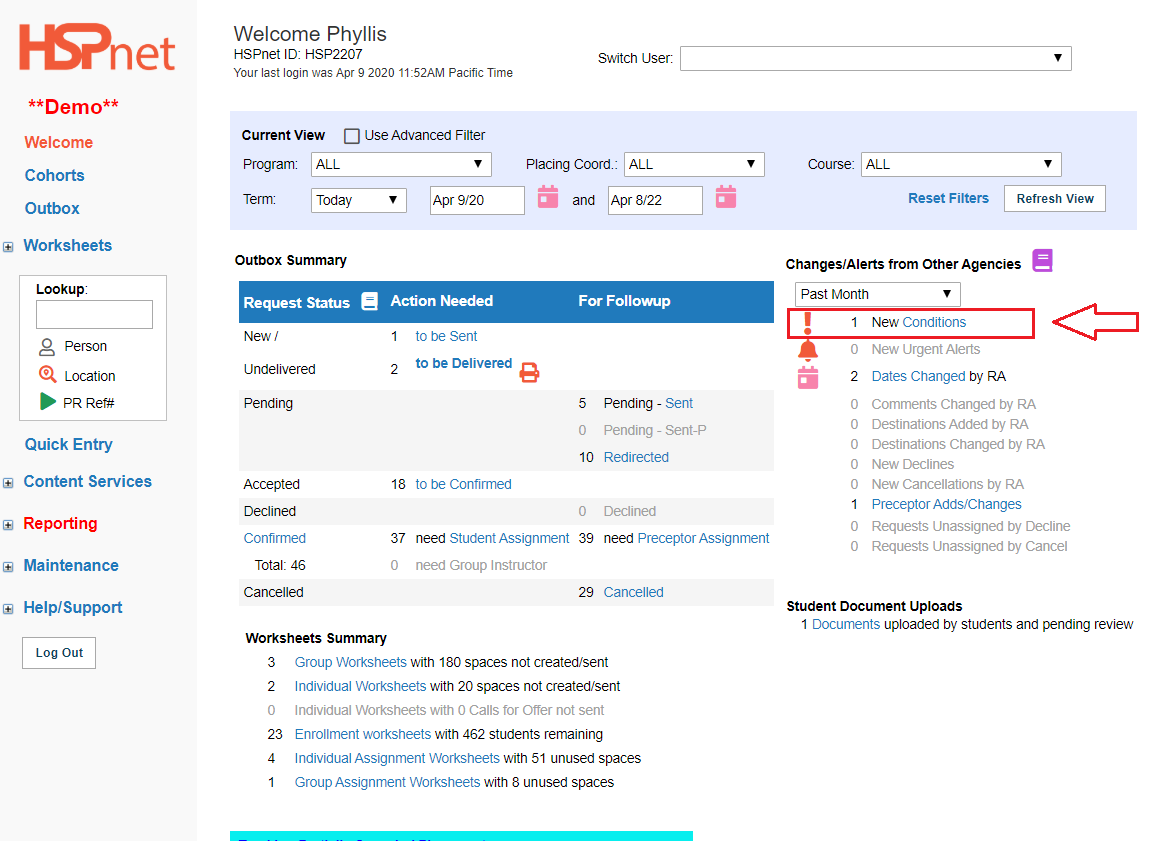
The school Placing Coordinator receives an alert/link on the welcome screen under Changes/Alerts from Other Agencies indicating a condition has been added to a placement request: 1 new conditions. The placing coordinator can click the link: 1 new conditions to view the Placement Request and the condition added to it.


-
If the school can meet the condition, the Placing Coordinator can update the placement request to meet the condition (Change group size, add a resume, etc).
-
The PC should then remove the condition in order to alert the Receiving Coordinator that the Placement Request has been updated.
-
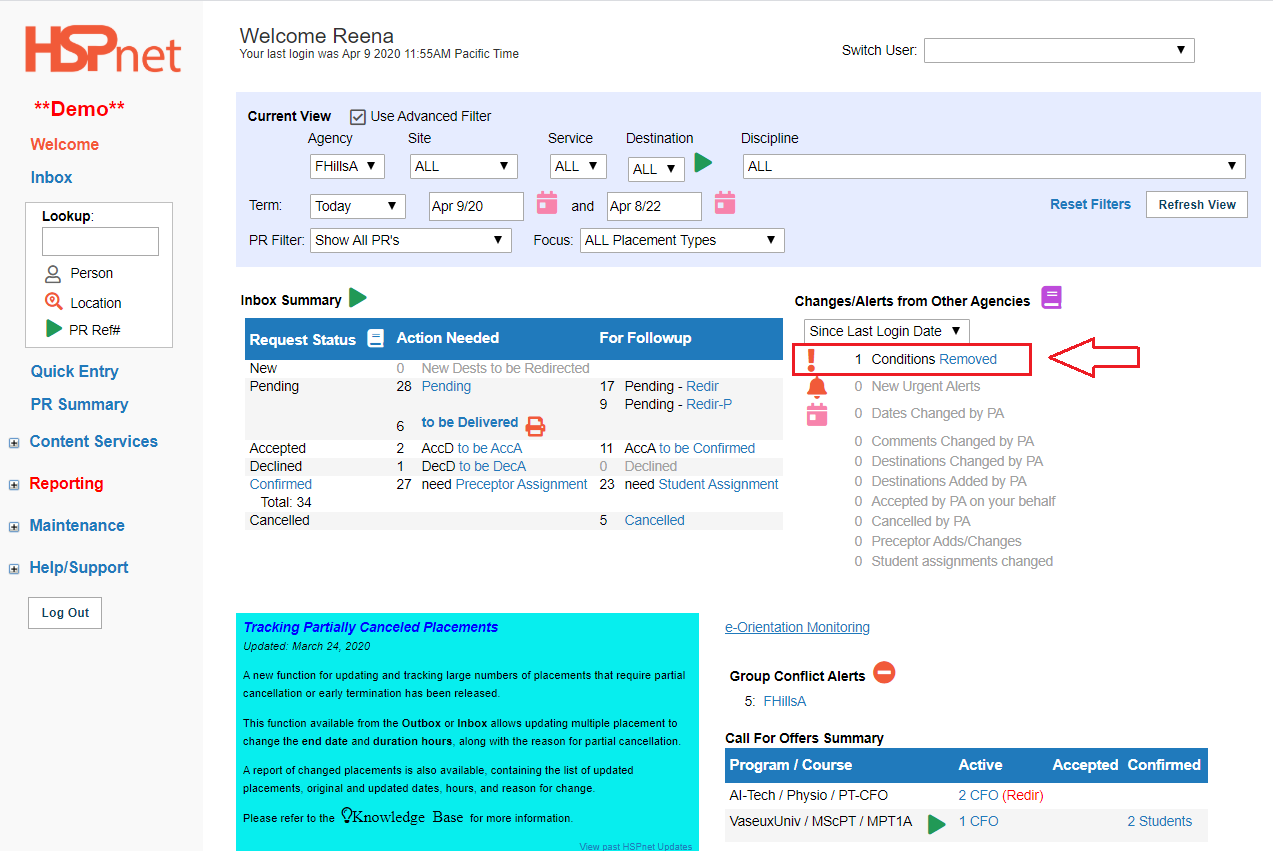
The RC receives an alert on the welcome screen under Changes/Alerts from Other Agencies, indicating: 1 Conditions Removed.
-
The RC can click that link to view the placement request.
-
If the condition has been met, the RC can now Redirect the placement request to the destination.


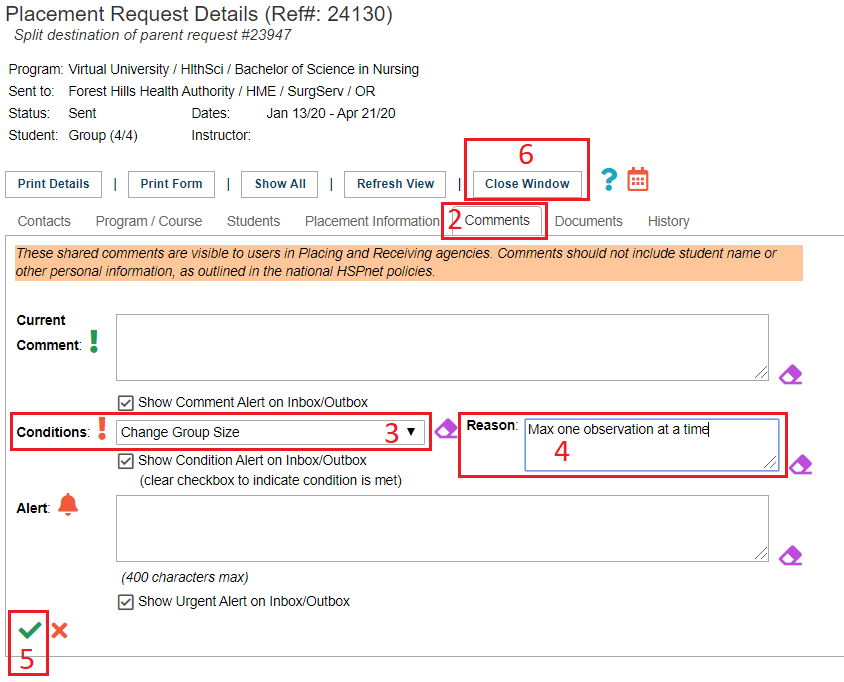
To add a condition: (RC or DC) to a student placement request:
- Open the details icon of a placement request.

- Go to the comments tab.
- Select a condition from the drop down list.
- Add text into the Reason box if needed.
- Click the green check mark to save the changes.
- Use "Close window."

When the condition is saved the condition icon (an orange exclamation mark  ) appears in the details of the PR to the right of the group or individual schedule icon


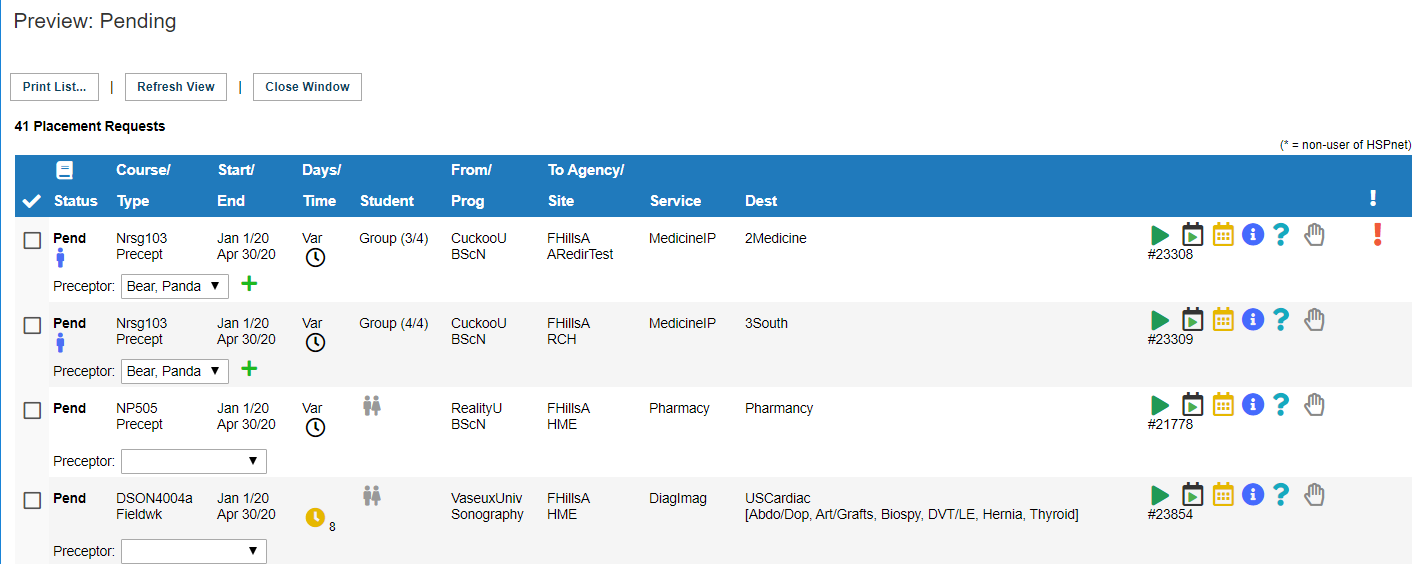
**How the condition is displayed (RC Screen) **PC's will get an alert on their welcome screen (illustrated 4 squares below).
In the preview screen the condition icon appears to the far right of the placement request (beside PR 23308 in the screen capture to the right).

How the condition is displayed (DC View Screen)
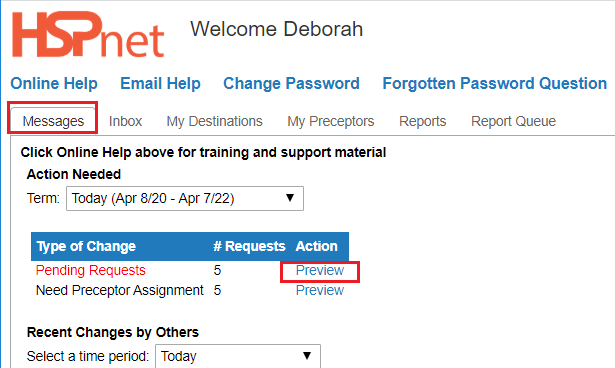
Messages Tab:
In the DC View screen, on the Messages tab, the icon appears to the right in the Preview/Pendingwindow whenPendingis clicked.
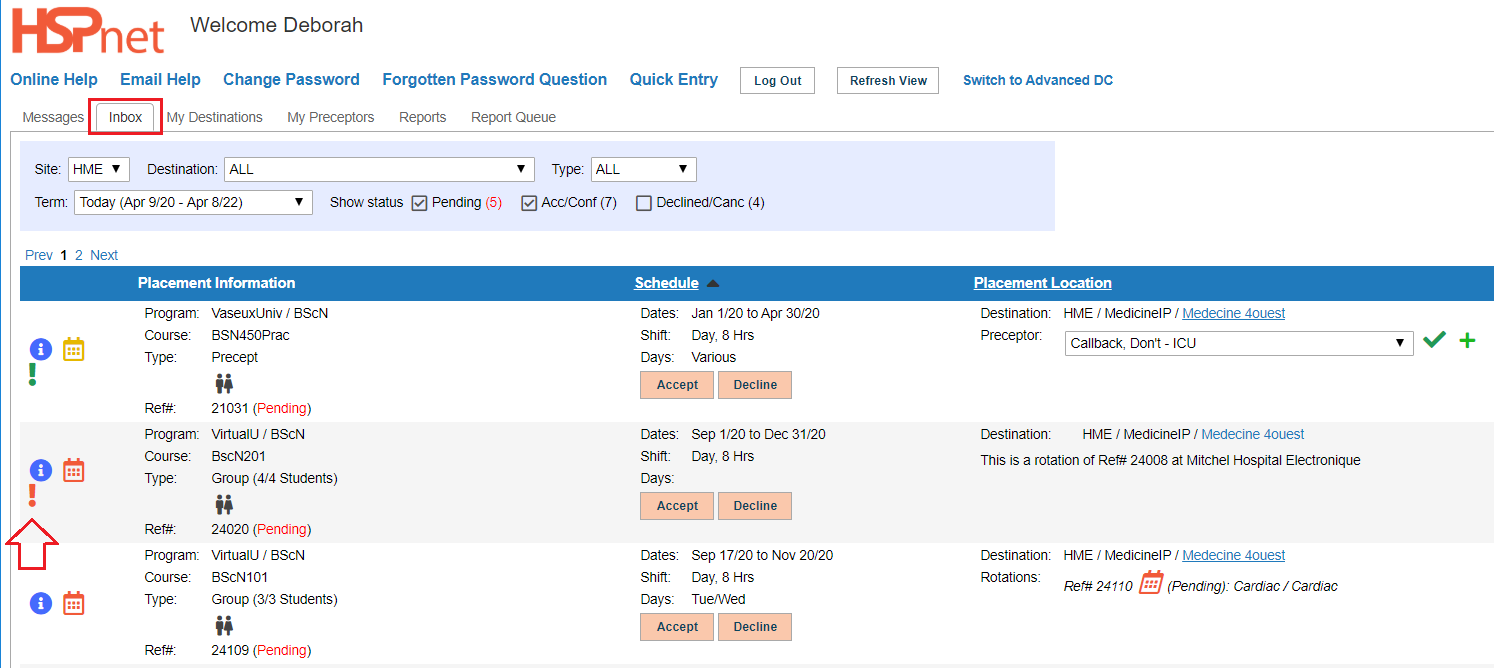
In Box:
On the left side of the request in the inbox. DC screen example: see request 21272.

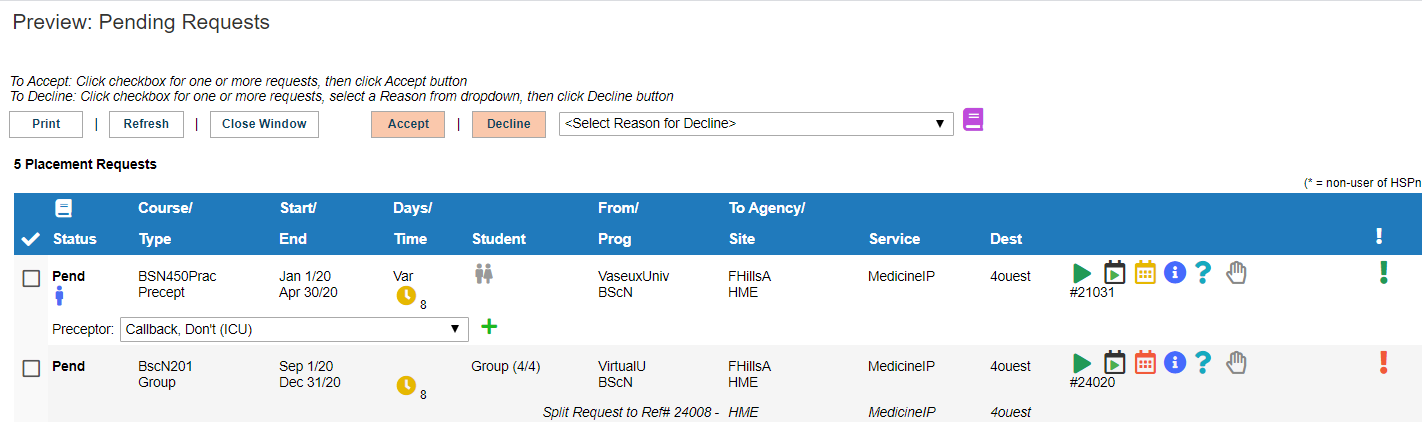


Dismiss is a separate feature, but the RC can use it now to hide this request from the list of PENDING requests on the Welcome screen.
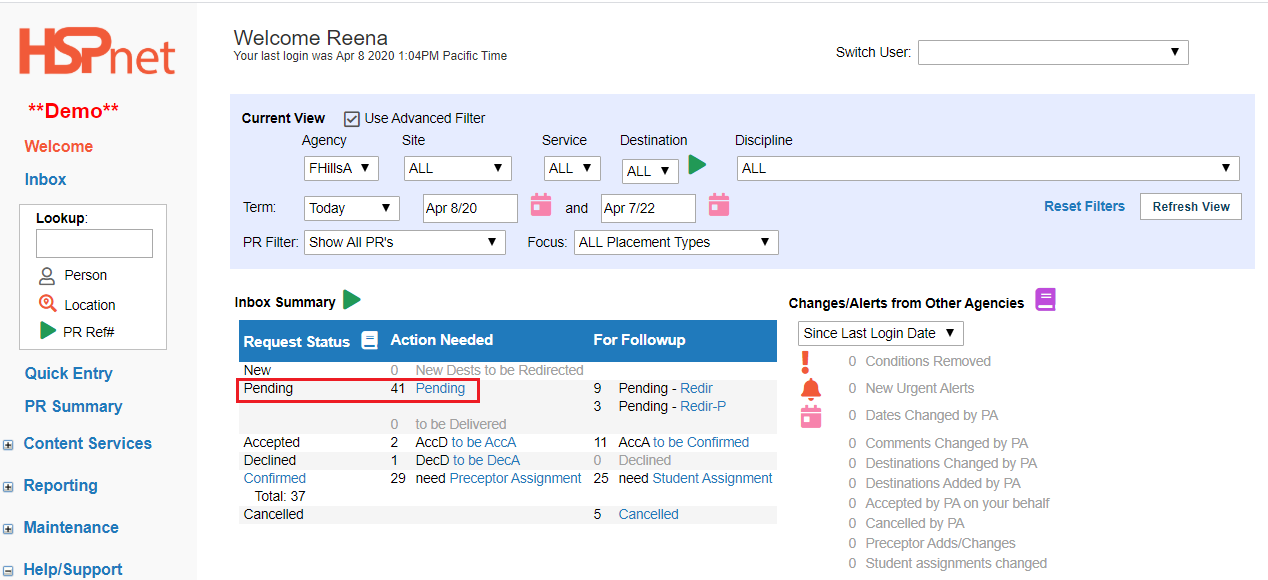
On the Welcome Screen, click Pending. The Preview Pending Screen will open.
-
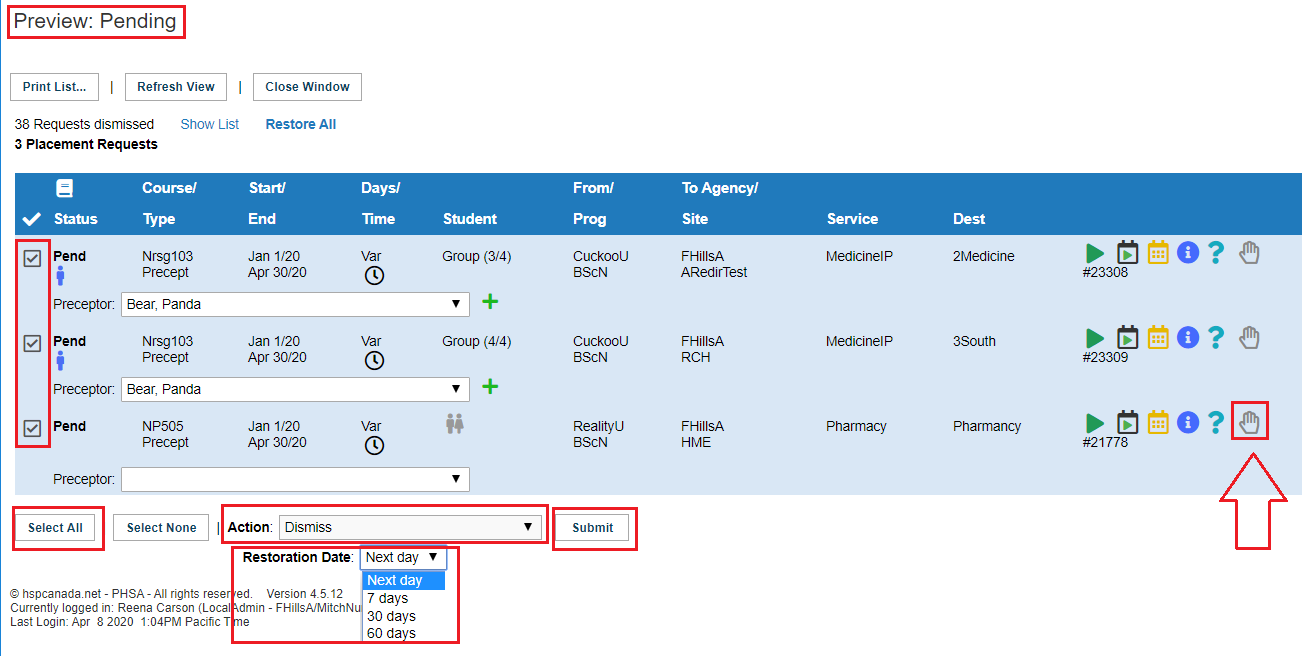
To dismiss the request for 24 hours only: click the dismiss icon on the right side of the request in the Pending Preview screen:
. -
To dismiss for longer periods:
- Click to place a check mark in the box adjacent to the request or select all.
- From the Action drop down list select: "Dismiss."
- Another drop down list opens called: "Restoration Date." Select 7, 30, or 60 days.
- Click "Submit."


Receiving Coordinator Welcome Screen
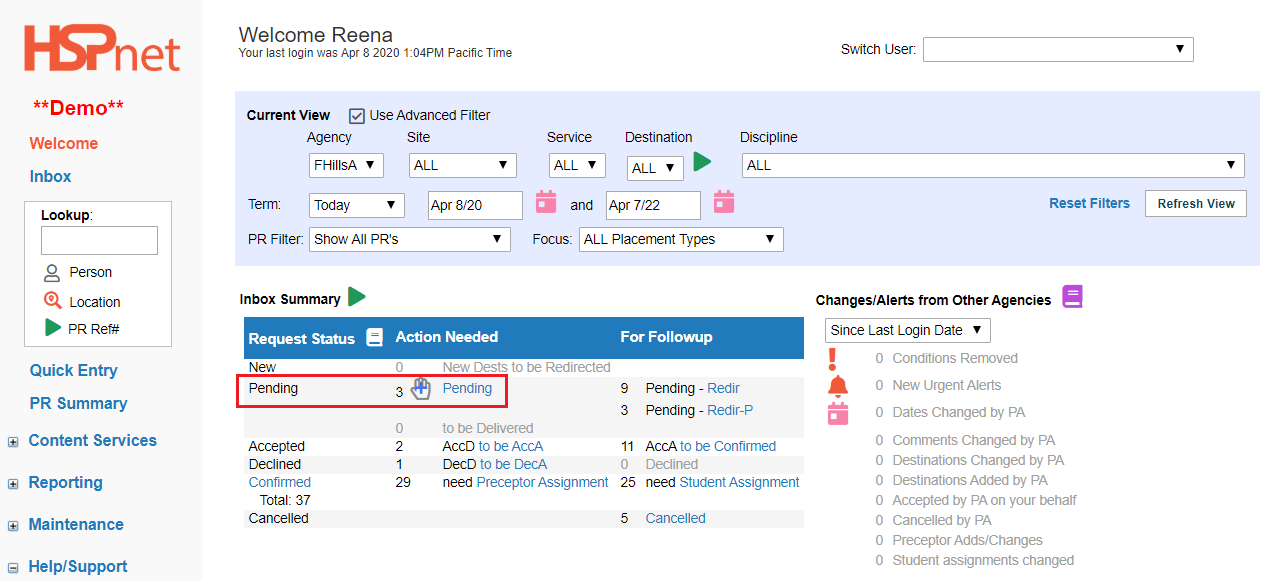
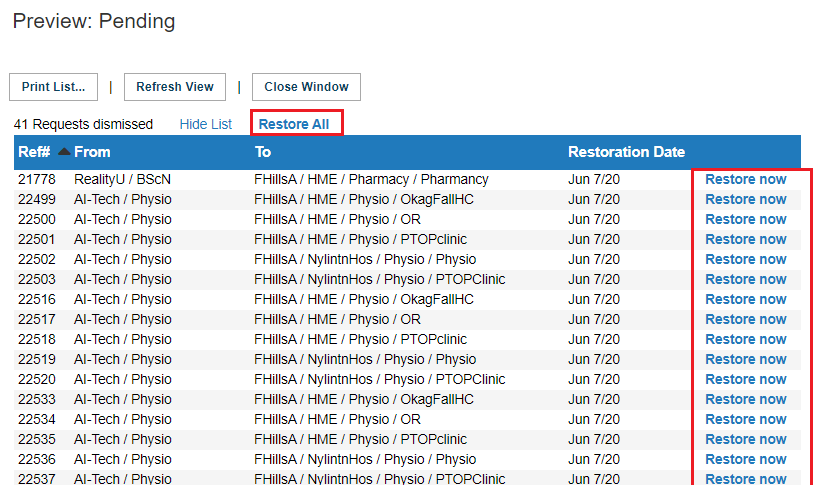
When an RC has dismissed a request, an icon appears beside pending on the Welcome Screen to indicate there are dismissed requests 
The RC can click the icon (requests dismissed to a future date) on the Welcome Screen, to view or restore the dismissed requests at any time. If the request was dismissed after the RC added a condition, the RC may want to restore the request once the condition has been met and removed.
To restore dismissed placement requests:


How the condition is displayed (PC Screen)
On the Placing Coordinator Welcome screen an alert will appear that a condition has been added.
The PC can click the link to look at the condition, and if the condition can be met.

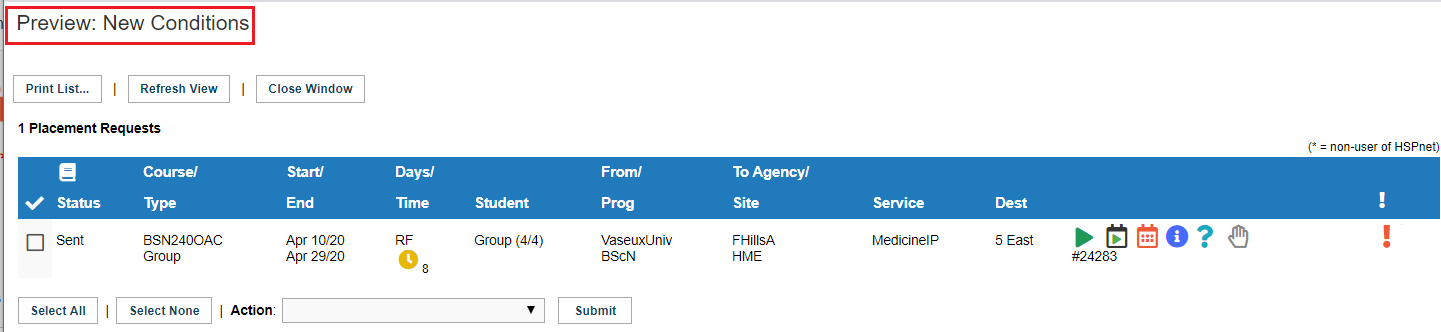

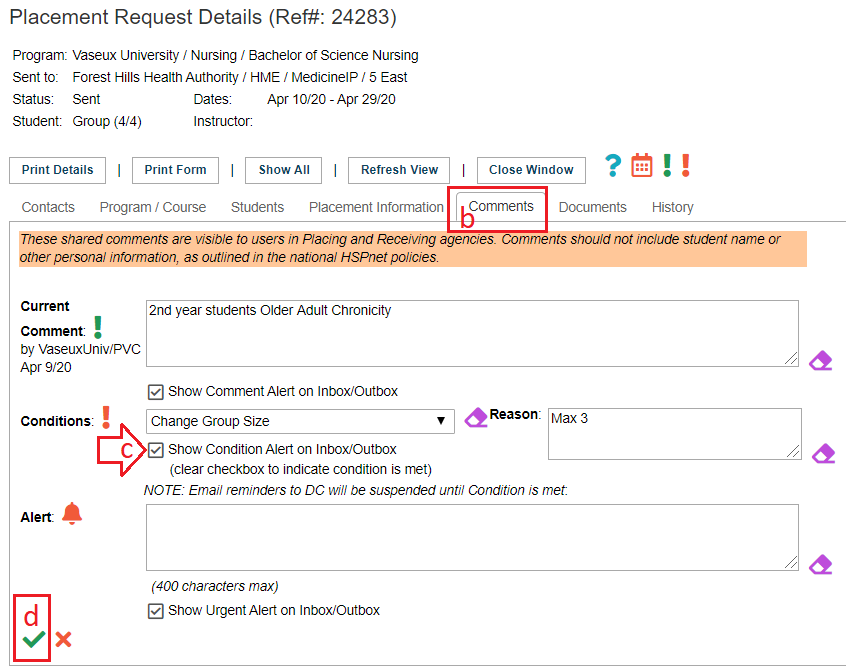
To enter in Conditions Met:
- Make the requested change to the Placement Request.
- Remove the condition on the comments tab of the placement request. 1. Open the details icon 1. Select the comments tab. 1. Click to uncheck the box in front of "Show condition Alert on inbox/Outbox." 1. Save the changes with the green check mark


 .



</div>
<div class="greybox" align="left">

[worddav89029fca3da24b210816e93e5bf7e930.png](attachments/12648646/12648645.png) (image/png)

[worddav7b7417f1b6d80ac159c41497e194ad82.png](attachments/12648646/12648647.png) (image/png)

[worddav924db38f0f29d6b1be3bf5303285c28c.png](attachments/12648646/12648648.png) (image/png)

[worddava06bf1063d019717bd0b157f8206ff53.png](attachments/12648646/12648649.png) (image/png)

[worddav9290bc24e2a693535234cdd56ea2e5d1.png](attachments/12648646/12648650.png) (image/png)

[worddavd37ed0aa4686b2348d0e39ae0c2eb01f.png](attachments/12648646/12648651.png) (image/png)

[worddavd6bae974a471246fb839735fd59b69cb.png](attachments/12648646/12648652.png) (image/png)

[worddav872807674ab9f0b3ad83f6197d836355.png](attachments/12648646/12648653.png) (image/png)

[worddava44fdfff25c1d5166b53f18505695f08.png](attachments/12648646/12648654.png) (image/png)

[worddave86b5a76547c24e0ed62050b4b1f122a.png](attachments/12648646/12648655.png) (image/png)

[worddav94bf72960a9451bddcd7fd30eec6cbd2.png](attachments/12648646/12648656.png) (image/png)

[worddava66fbfa35e80ef3b8bdebb39a50e03fa.png](attachments/12648646/12648657.png) (image/png)

[worddav6d5a9d5bec6d5ec3c3701b4501e3907b.png](attachments/12648646/12648658.png) (image/png)

[worddav0e1851ce23a4040d631d942159eb6841.png](attachments/12648646/12648659.png) (image/png)

[worddavbb31719dd40c0f29fd8ac13aa51e1b5d.png](attachments/12648646/12648660.png) (image/png)

[worddav7fd7a666845de535aab2364685325e39.png](attachments/12648646/12648661.png) (image/png)

[image2020-4-8_13-13-27.png](attachments/12648646/28806193.png) (image/png)

[image2020-4-8_13-26-13.png](attachments/12648646/28806197.png) (image/png)

[image2020-4-8_13-36-44.png](attachments/12648646/28806214.png) (image/png)

[image2020-4-8_13-45-24.png](attachments/12648646/28806216.png) (image/png)

[image2020-4-8_14-0-58.png](attachments/12648646/28806231.png) (image/png)

[image2020-4-8_14-10-21.png](attachments/12648646/28806234.png) (image/png)

[image2020-4-8_14-24-53.png](attachments/12648646/28806245.png) (image/png)

[image2020-4-8_14-26-4.png](attachments/12648646/28806247.png) (image/png)

[image2020-4-8_14-30-26.png](attachments/12648646/28806249.png) (image/png)

[image2020-4-9_10-42-20.png](attachments/12648646/28806253.png) (image/png)

[image2020-4-9_13-24-9.png](attachments/12648646/28806268.png) (image/png)

[image2020-4-9_13-27-25.png](attachments/12648646/28806271.png) (image/png)

[image2020-4-9_13-33-25.png](attachments/12648646/28806275.png) (image/png)

[image2020-4-9_13-36-35.png](attachments/12648646/28806278.png) (image/png)

[image2020-4-9_13-38-26.png](attachments/12648646/28806281.png) (image/png)
</div>
</div>
</div> </div>
<div id="footer" role="contentinfo">
<section class="footer-body">
Document generated by Confluence on Nov 03, 2023 14:36
<div id="footer-logo">[Atlassian](https://www.atlassian.com/)</div>
</section>
</div>
</div>