
Email - Scheduled Reminders
1.
<span>[Knowledge Base](index.html)</span>
</div>
# <span id="title-text"> Knowledge Base : Email - Scheduled Reminders </span>
</div>
<div id="content" class="view">
<div class="page-metadata">
Created by <span class="author"> user-b1fcb</span>, last modified by <span class="editor"> user-10cb2</span> on Dec 06, 2021
</div>
<div id="main-content" class="wiki-content group">
**Placing & Receiving Agency Related Guide (PARG RARG)
Process:
- Click: to place a check mark in the checkbox for one or more placement requests (PR), in order to select them.
- Select: Schedule a Reminder from the Action drop down list.
- Click:

 to open the Schedule a Reminder window.


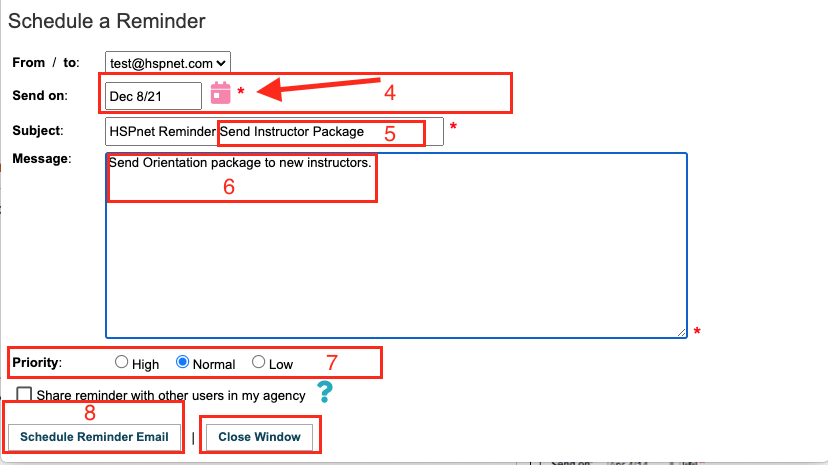
4. Select a date for the reminder email to be sent – this date must be tomorrow or later.
-
Add your own text to the default Subject, or
relacereplace the default text if desired. -
Enter a message (mandatory).
-
Select the Priority..
-
Click the button to: Schedule reminder Email. There is an option to Share the reminder with other users at your agency. Click the check box to activate.
A green background message will list the reference numbers of each PR that has a new reminder.
Click: Close Window.


- The Inbox / Outbox, will display a red flag icon for each PR that has a reminder.
- Hover your cursor over the flag to see when and what the reminder is.
- When the reminder date is past, the icon will be faded.
Click a Reminder icon

- Change the date to reschedule to a later date. If the previous reminder is now in the past, you can enter a new, future date to schedule another reminder.
- Revise the subject, message or Priority level
- Click

 to delete the reminder.


<div class="greybox" align="left">

[worddav68ae31fd646ea2c673f0f78beca2b03a.png](attachments/10781301/10781300.png) (image/png)

[worddavad12d7c1e0df14311b3536654be3a202.png](attachments/10781301/10781302.png) (image/png)

[worddav704e114df0a941e41cc37a61225ef93e.png](attachments/10781301/10781303.png) (image/png)

[worddav565fd068287c0b37766dc37fc27431f7.png](attachments/10781301/10781304.png) (image/png)

[worddav484de6df0fb0076bf930913f6267e471.png](attachments/10781301/10781305.png) (image/png)

[worddav8b6391b5523f3017f97b66f346e477a2.png](attachments/10781301/10781306.png) (image/png)

[worddavb423c2c1e30c9ab02ca626c6aa66d48f.png](attachments/10781301/10781307.png) (image/png)

[2.PNG](attachments/10781301/10781309.png) (image/png)

[Screen Shot 2021-12-06 at 09.39.18.png](attachments/10781301/51315417.png) (image/png)

[Screen Shot 2021-12-06 at 09.43.06.png](attachments/10781301/51315419.png) (image/png)

[Screen Shot 2021-12-06 at 09.47.21.png](attachments/10781301/51315421.png) (image/png)

[Screen Shot 2021-12-06 at 09.51.26.png](attachments/10781301/51315423.png) (image/png)

[Screen Shot 2021-12-06 at 09.59.38.png](attachments/10781301/51315425.png) (image/png)

[Screen Shot 2021-12-06 at 09.59.10.png](attachments/10781301/51315426.png) (image/png)

[Screen Shot 2021-12-06 at 10.00.51.png](attachments/10781301/51315428.png) (image/png)

[Screen Shot 2021-12-06 at 10.00.11.png](attachments/10781301/51315429.png) (image/png)

[Screen Shot 2021-12-06 at 10.18.09.png](attachments/10781301/51315430.png) (image/png)

[Screen Shot 2021-12-06 at 10.19.25.png](attachments/10781301/51315431.png) (image/png)
</div>
</div>
</div> </div>
<div id="footer" role="contentinfo">
<section class="footer-body">
Document generated by Confluence on Nov 03, 2023 14:23
<div id="footer-logo">[Atlassian](https://www.atlassian.com/)</div>
</section>
</div>
</div>