Placement Requests - Splitting, Linking and Merging Requests
Placing Agency Related Guide (PARG)
Summary:
This guide provides scenarios and instructions for Splitting, Linking, or Merging placement requests.
- Splitting is done using the Advanced Scheduler. An existing request is modified to add another split placement request (for different destinations or different dates in a rotation). There is another guide in the knowledge base specific to the Advanced Schedule only.
- Merging is taking two independent requests and making them into a split request in reverse (not using the Advanced Scheduler to create the split, but when the merge is complete, the Advanced Scheduler opens to allow the merge to be managed like a split request).
- Linking visually "chains" two requests together, for consideration together.
Icons:
 Advanced Scheduler - no splits exist.
 Advanced Scheduler - splits exist.
 Placement Request is split with another request.
 This icon in the Advanced Scheduler will allow you to unsplit the split.
 Placement Request is marked for Linking but is not linked yet.
 Placement Request is linked with the request appearing below/above it in the inbox.
 Icon used to undo links.
There are situations where placement requests involve more than one destination, such as:

|
|
|
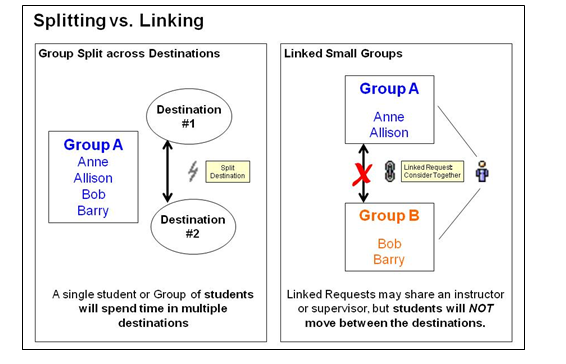
- An instructor-led group of students will be split across more than one destination and will be supervised by the assigned instructor. Students and instructors will spend time on/move between destinations. In alternate observations, the student may not be accompanied by the instructor the entire time, but the instructor is nearby with the main group.
- Example: A group of 8 is on a Surgical Inpatient Unit. The split can be set up as a rotation into the OR so that a different student always attends the mandatory OR rotation over the 8 week period of the placement; it can also be set up as an alternate observation indicating one student may be going to the OR on the days indicated (but every single date may not be used).
- A student in an Individual Placement can move across multiple destinations. Example: A cardiac tech student may in one course be assigned to the Cardiology department in the parent request, and then have split placements to the Diabetic/Cardio clinic, the Cardiac Rehab Unit, and Cardiac Surgery - and these splits could be at same site, or across agencies and different sites.
- The student(s) and faculty are assigned on the assignment worksheet only to the initial/primary/parent request; by default the same student(s) and faculty will be assigned to every split made from the original request. (There is more than one reference number for the split placements in this single practicum (course) experience - but only one assignment from the assignment worksheet).
- Two groups on different destinations will be supervised by a single instructor. Students will NOT move across destinations.
- Example: Group A is on the East unit and Group B is on the west Unit. Students assigned to Group A remain on the East side, and students in Group B remain on the west side, but the single instructor moves back and forth between the two groups on the East and West units throughout the shift.
- Specific students are assigned to each unique placement request that is linked (there is only one reference number per student for this entire practicum).
- Normally linking means the Post Secondary school only has one instructor and the linking is added to show the school would like these requests considered together for that reason.
|
Splitting a Group across Destinations (Advanced Schedule) |
|
|---|---|
|
In this example, a group of 6 students will be split so that 4 students are placed in a cardiology unit and 2 students in a clinic, and students will take turns rotating into the clinic (they will move across destinations).
|
|
|
3. Click Add |
|
|
4. Enter the destination group size: that is the number of students that will be at this destination at any one time. The overall group has six students, however this split will never have more than two students attend at any one time, so we have entered 2.
5. In this scenario: do not select the Optional rotation because students will be present in the clinic for all shifts. (see below for definitions of "optional" vs. "mandatory").
6. From the drop down lists select the Agency, Site, Service and Destination. It is possible to split a request between two or more different agencies.
7. In this scenario we will leave the dates exactly the same as the parent (original request 25464), because this is a rotation and all dates between the start and end date will have two students attend. 8. Click the green check mark |
|
| 9. Click the edit (pencil) icon on the primary (original) placement request in order to: |
|
|
|
|
The Advanced Schedule now displays:
|
|
|
The outbox now displays a small lightning bolt
|
|
|
Splitting an Individual Request (Advanced Schedule)
An individual placement (e.g. preceptorship) should be split when the student will spend time in more than one destination.
|
|
| 2. Click the add icon. |
|
|
3. Select the appropriate Agency, Site, Service and Destination for the second rotation in this placement.
4. Click the calendar icon to choose a new start date for this placement at this destination (we will need to go back later and adjust the end date on the previous placement. You could also adjust the end date if this is only the second of several rotations during the duration of this single placement. |
|
|
5. Click the green check mark |
|
|
The total hours now show in red: the course is only 200 hours long, but our changes now show the added placement has changed that to 400 hours. |
|
|
6. Click the pencil/edit icon beside PR 25467 to adjust the end date and the hours for the parent/primary/original Placement Request. |
|
|
7. Click the end date calendar icon to choose a new end date for the parent request. |
|
|
8. Adjust the hours for this portion of the rotation at this destination. 9. Save the changes by clicking the green check mark |
|
|
The hours (250) still show more than the course (200).
10. Click the pencil icon to perform further edits on the split request: we need to reduce the hours. |
|
|
11. Reduce the hours so the total between both placements adds up to the course total. 12. Save the Changes by clicking the green check mark
|
|
|
Click: Return to outbox.
|
|
| When you send split requests, you need to send the primary request and all of the splits as each is a separate placement request requiring a response from the receiving agency. |
|
|
Unsplitting *You do not have to unassign the students before clicking that icon. |
|
|
Click the unsplit icon |
|
|
Once you press OK, the Parent and whichever Child placement that you have chosen to unsplit will then be unsplit. You will then see them as separate placements in the Inbox.
You will see that the Child (26503 as example) does not have any students assigned to it as when it was unsplit the students assigned to the Child placement will be unassigned automatically if it is the same Course.
*Students can only assigned to one placement per Course, per Term. |
|
| You will then be able to assign new students to that unsplit placement |
|


|
Linking Requests (available in the Outbox only) |
|
|---|---|
|
Background and Filters
The purpose of linking requests is to signal to the receiving agency that these requests should be considered together, as when one is not accepted, the other request may no longer be viable as both requests are needed. (One instructor is overseeing both groups - if only one group is accepted, that accepted group may need to cancel so the placing coordinator can try again at another facility where both groups can be accepted in proximity to one another).
Linked sets sort to the top of the inbox and Outbox regardless of the sort by setting that is chosen in the Advanced inbox/outbox Filters. A checkbox to display "Group Linked Sets" is available in both the Inbox (Receiving Agency) and the Outbox (Placing Agency), and allows users to display linked sets together (or not).
|
|
|
Link Requests:
|
|
|
A green background message proclaims: X Placement Requests were updated as specified - however, the linking has not occurred yet!
Instead, at the top of your outbox, a copy of the list of the placement requests marked for linking will be bundled together. You can continue to add to this list by now marking additional placement requests for linking. (Often you may have multiple pages of requests and you may need to filter the outbox to mark other placements in that course). The bundle displaying at the top of the outbox are copies; meanwhile, the rest of the outbox will display the marked for linking Review the bundle of requests marked for linking at the top of the outbox before proceeding. Click the garbage can icon
4. When all of the requests needed for the linking are assembled at the top of the outbox and you are ready to link, click the button: Link Requests. Caution: Marking one request from a set of split destinations (made with the advanced scheduler) will automatically mark all the split requests in the set for linking; this can result in a cluttered Inbox/Outbox and therefore linking sets of multiple split rotations should be avoided. |
|
|
A green background message will appear that says: The selected Placement Requests have been linked. The bundled list will disappear. In the outbox, (and when sent in the Receiving Coordinators inbox) the requests be joined by the linking icon |
|
|
6. To remove a request from a linked set, click the Un-link Un-linking may be used when:
|
|


|
Merging Requests (available in the Outbox only, when filtered to a single course) |
|
|---|---|
|
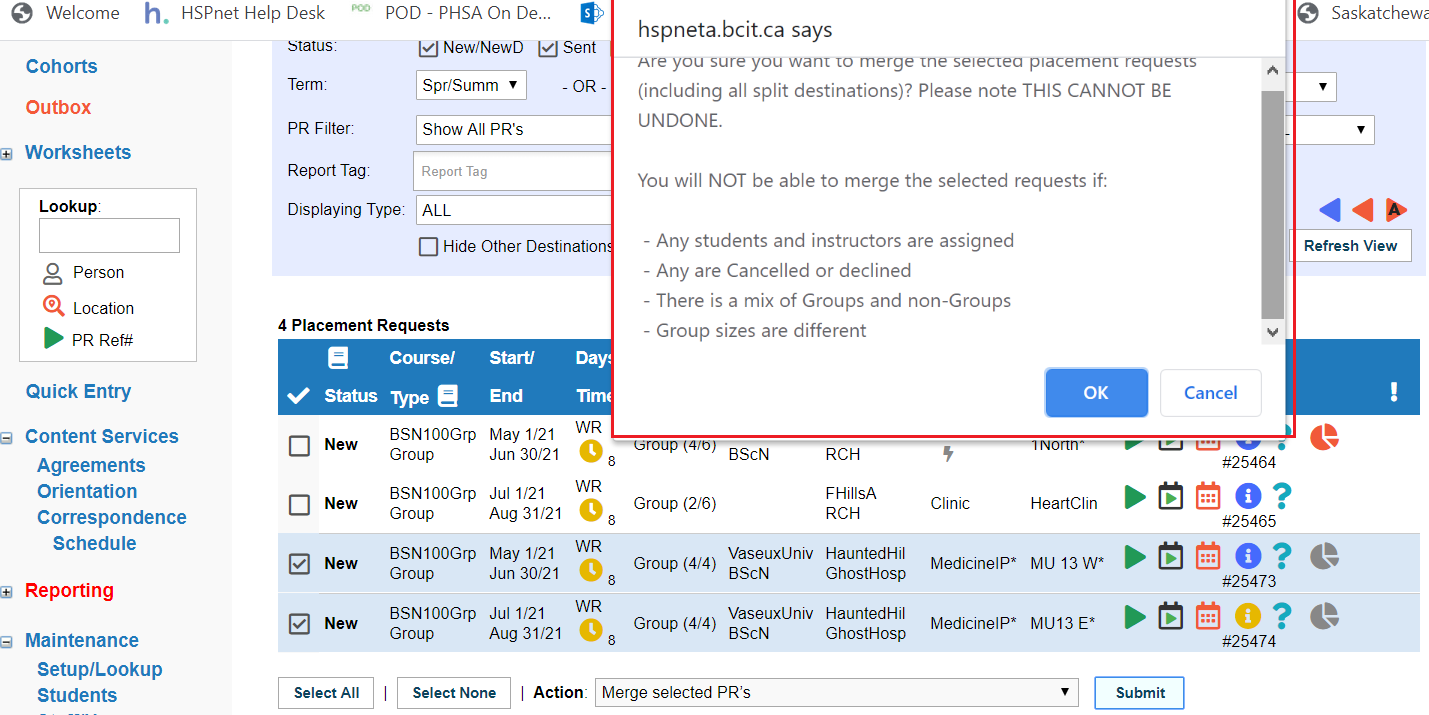
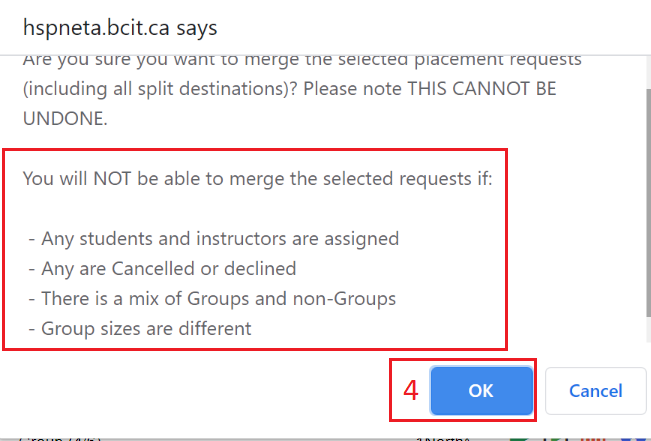
Merging placements is done in the Outbox, and allows two separate requests to be combined into a split request with multiple destinations - as if using the Advanced Scheduler in reverse.
Preparation:
|
|
|
In the Outbox and filtered to a single course:
|
|
|
If the merge is successful, the selected requests will now be combined in a split set, and the Advanced Schedule screen will launch automatically with the usual red warning to review and adjust dates, destination/total hours, and group sizes as needed. (See above, or for more details please see the document specific to the advanced schedule. |
|
| Return to top of Document | |